Updating Dwarf Therapist Without Losing Settings
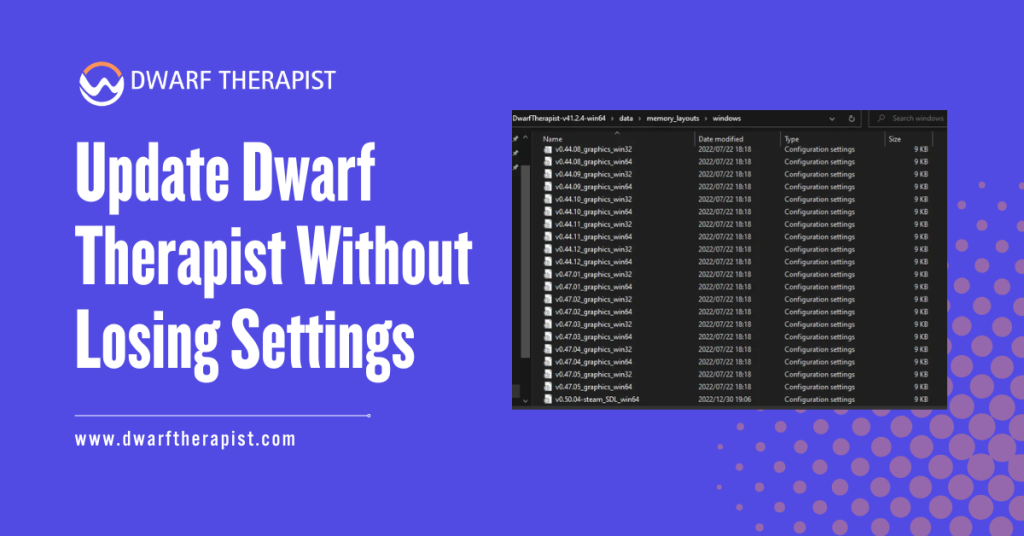
Introduction Dwarf Therapist is a portable, folder-based application with no system installer, which means updating it is not as straightforward as running an automatic updater or clicking a single button. Every new release arrives as a fresh archive that players must extract and configure manually. Without a deliberate approach to preserving your existing setup, an update can silently overwrite the custom roles, labor profiles, and display preferences you have spent time building across multiple fortress sessions. The good news is that Dwarf Therapist stores its user configuration in separate files entirely separate from the core application files. Understanding which files hold your settings, where they are located, and how to carry them forward into a new version is all you need to update cleanly without losing any customization. This guide covers that process in full, including what to back up, how to transfer settings correctly, and how to verify everything is working after the update. All guidance here is based on community-verified procedures and is intended for informational use by Dwarf Fortress players on Windows. Quick Facts about Updating Dwarf Therapist What Settings Are at Risk When You Update Dwarf Therapist Which Files Store Your Configuration? Dwarf Therapist separates its core application logic from user-generated data. The executable and its supporting system files handle the memory-reading and interface functionality. Your personal configuration, by contrast, lives in a small set of files that the application reads on startup and writes to when you make changes during a session. The primary settings at risk during an update Dwarf Therapist fall into three categories. Custom roles are the most valuable, as these represent named labor groupings you have defined to quickly assign multiple labors at once to a dwarf type such as a dedicated miner, hauler, or craftsdwarf. Labor display preferences control which columns appear in the grid and in what order, and losing these means rebuilding your visual layout from scratch. Notification thresholds and stress settings, where configured, are also stored in user-facing files rather than hardcoded into the application. The specific files that hold these settings are typically found within the application folder itself, often in a subfolder named something along the lines of “share” or “therapist” depending on the release version, or in some builds they appear directly in the root of the application folder as files with extensions such as .ini, .json, or .csv. Locating them before updating is the essential first step that many players skip and later regret. Why Updates Overwrite Settings Without Warning Dwarf Therapist does not include an update manager or a settings migration system. When you download and extract a new release, you receive a clean folder containing only the files the maintainers packaged for that version. If you copy that new folder on top of your existing one or simply start using the new executable without moving your settings files, the application will either use its built-in defaults or fail to find any of your previous configuration. This is not a flaw in the application design so much as a consequence of its portable structure. Portable applications trade the convenience of automatic updates for the simplicity of running without installation. The tradeoff means that update management, including settings preservation, falls entirely to the user. Understanding this context makes the backup and migration steps feel less like an obstacle and more like a straightforward part of the update workflow once you have done it once. How to Back Up Your Dwarf Therapist Settings Before Updating Locating and Identifying Your Settings Files Before downloading a new version, open your existing Dwarf Therapist folder and examine its contents. You are looking for any files that you did not receive as part of the original download, meaning files that were created or modified after your first launch. These are your settings files. Common files and folders to look for include anything named roles, custom roles, or labor templates, any file with a .ini extension which typically stores display preferences and window configurations, any file with a .json or .csv extension that contains structured data about your labor definitions, and any subfolder that appears to hold user data rather than program resources. On some versions a folder called “share” contains a subfolder structure where roles and configurations are stored as individual named files. If you are uncertain which files were part of the original download and which you created, check the file modification dates in Windows Explorer. Files modified after your original installation date are the ones you want to preserve. All original application files will share the same date as when you first extracted the archive. Steps to locate your settings files: Creating a Safe Backup Before Proceeding Once you have identified your settings files, copy them to a backup location before doing anything else. A dedicated backup folder named something like “DwarfTherapist Settings Backup” alongside your application folder works well and keeps things easy to find if you need to restore. Do not delete your existing Dwarf Therapist folder at any point during this process. The safest approach is to leave it completely intact throughout the update, extract the new version into a separate new folder, migrate your settings files into the new folder, test the new version, and only then archive or remove the old folder once you have confirmed everything works correctly. This approach means you always have a working fallback if something goes wrong during the migration. How to Update Dwarf Therapist and Restore Your Settings Extracting the New Version Correctly Download the new Dwarf Therapist release from the official GitHub repository. Confirm before downloading that the release notes specify compatibility with your current Dwarf Fortress version. Extracting an incompatible version, even with perfect settings migration, will result in connection failures and incorrect data. Extract the new release into a fresh folder that is clearly named with the version number, for example “DwarfTherapist v41.2.4” or whatever the release number is. Do not extract into your existing folder and do not overwrite any files at this stage. The new folder should
Dwarf Therapist Config File & Default Settings Explained
Introduction Dwarf Therapist is a powerful external management tool for Dwarf Fortress, but most players interact only with its visual interface and never explore the configuration layer underneath it. The config file and default settings control how the application behaves, what data it displays, and how it organizes your dwarf roster. Understanding these settings gives you meaningful control over the tool beyond basic point-and-click labor management. You can define custom roles, adjust display behavior, set default labor states for new dwarves, and resolve persistent issues that the interface alone cannot fix. This guide explains every major component of the Dwarf Therapist configuration system, what each setting does, where the relevant files are located, and how to modify them safely and effectively. Quick Facts about Dwarf Therapist Config File What the Dwarf Therapist Config File Contains File Location and Structure Overview The config file location varies depending on your platform and how Dwarf Therapist was installed. On Windows, the file is typically found in the same directory as the Dwarf Therapist executable, named DwarfTherapist.ini or preferences.ini depending on the version. On Linux, the file is commonly stored in the hidden .config directory within the user’s home folder, under a path such as ~/.config/DwarfTherapist/DwarfTherapist.conf. On macOS, it may be located in ~/Library/Preferences/ or within the application bundle depending on how the build was compiled. The file is structured in sections, each marked with a bracketed header such as [MainWindow] or [Labor]. Each section contains key-value pairs that define specific behaviors. A typical entry looks like this: Understanding this structure makes manual editing straightforward. Each key has a defined purpose, and values are constrained to expected types such as integers, booleans, or strings. Entering an invalid value type for a key will usually cause Dwarf Therapist to fall back to its built-in default for that setting. Core Settings Sections and What They Control The config file is organized into logical sections that correspond to different areas of the application. The most commonly relevant sections for players are MainWindow, Labors, Roles, Display, and General. The MainWindow section stores the application window’s saved position and size, whether the toolbar and sidebar panels are visible, and the last-used column sort order. These settings are updated automatically each time you close the application, so manual editing of this section is rarely necessary. The Labors section is where default labor states are defined. Each labor has a corresponding key that determines whether it is enabled or disabled by default when Dwarf Therapist first reads a dwarf that has no prior configuration. This section directly influences how new migrants appear in the labor grid when they arrive at your fortress. The Display section controls visual presentation including column visibility, color thresholds for skill level highlighting, and whether mood indicators are shown inline with dwarf names. Adjusting these settings can meaningfully improve readability for large fortresses with dense labor grids. The General section contains application-level settings such as the memory polling interval, whether Dwarf Therapist should auto-refresh when new dwarves are detected, and logging verbosity for troubleshooting purposes. How Default Settings Affect Your Labor Grid Factory Defaults and What They Mean in Practice When Dwarf Therapist is installed fresh with no prior configuration, the factory defaults determine how every element of the interface is presented. These defaults are embedded in the application binary and represent the developer’s judgment about a reasonable starting state for a new user. By default, most labors are neither universally enabled nor universally disabled in the grid display. The tool presents the current state of each dwarf’s labor as it appears in the game, rather than imposing its own starting values. This means the grid on first launch reflects whatever labor states your dwarves already have from in-game assignment or vanilla defaults. The refresh interval defaults to a moderate polling rate, typically a few seconds between memory reads. This balances responsiveness with system resource usage. For players managing very large fortresses, lowering the polling interval can make the grid feel more reactive. For players on lower-end hardware, increasing it reduces background CPU usage. Color-coding defaults assign visual distinctions to skill-level ranges, helping players quickly identify which dwarves are novices versus experts in any given labor column. These thresholds can be adjusted in the Display section if the default ranges do not match your preferred visibility style. Role Definitions and How They Interact With Default Settings Roles in Dwarf Therapist are named labor bundles that you can define once and apply to any dwarf with a single action. A role called Farmer might enable agriculture, plant gathering, and food hauling while disabling everything else. A role called Dedicated Smith might enable only metalsmithing and related hauling labors. Role definitions are stored in the config file’s Roles section. Each role entry specifies a name, a list of enabled labors, and optionally a list of explicitly disabled labors. When you apply a role to a dwarf, Dwarf Therapist writes those labor states directly to the game’s memory for that dwarf. Default roles shipped with Dwarf Therapist cover common fortress archetypes and provide a useful starting point. They are fully editable and can be replaced with custom definitions suited to your particular fortress management style. Common problems with default settings and how to resolve them: Editing the Config File Safely and Effectively Manual Editing Best Practices Manual configuration file editing gives you precise control over settings not exposed through the graphical interface. Before making any changes, copy the existing config file to a backup location named DwarfTherapist.ini.backup. Open the config file in a plain text editor. On Windows, Notepad works but a code-aware editor such as Notepad++ or VS Code will highlight structure more clearly and reduce the risk of accidental formatting errors. On Linux and macOS, any terminal-based or GUI text editor is suitable. Edit only the key-value pairs you intend to change. Avoid altering section headers, removing keys entirely, or changing the file encoding. Most config parsers used by Qt applications expect UTF-8 encoding without a byte order mark;
How to Install Dwarf Therapist With Mods Enabled
Introduction Installing Dwarf Therapist alongside a modded version of Dwarf Fortress introduces a specific set of challenges that a clean vanilla installation does not. Mods can alter labor definitions, add new professions, change dwarf attributes, and restructure the underlying data that Dwarf Therapist reads from game memory. When these changes conflict with what the tool expects to find, the result ranges from minor display issues to a complete failure to connect. Understanding how Dwarf Therapist interacts with mods before you begin the installation process saves significant troubleshooting time later. The relationship between the tool and the game is built on memory offset mapping, and mods that touch labor, skill, or unit data are most likely to disrupt that mapping. This guide covers the full installation process for a modded Dwarf Fortress environment, what to check before installing, how to configure the tool for mod compatibility, and how to handle the most common conflicts players encounter. All guidance is based on community-verified procedures and is intended for informational use. Quick Facts about How to Install Dwarf Therapist What Mod Types Affect Dwarf Therapist Compatibility Labor and Profession Mods Mods that introduce new labors or redefine existing profession categories are the most directly relevant to Dwarf Therapist functionality. The tool builds its labor grid based on an internal list of expected labor identifiers. When a mod adds labors that fall outside that list, those labors simply do not appear in the Dwarf Therapist interface. This does not necessarily break the tool entirely. Dwarves will still appear in the roster, and existing vanilla labors will still display and function normally. The gap is that any mod-added labor becomes invisible to the Dwarf Therapist, meaning you cannot assign or track them through the tool. Mods that rename or reindex existing vanilla labors carry more risk. If a mod reassigns the numeric identifier of a labor that Dwarf Therapist expects at a specific memory position, the tool may display incorrect labor states, showing labors as enabled when they are disabled or vice versa. Unit Attribute and Skill Mods Mods that add entirely new skill categories or extend the skill list beyond the vanilla range can cause display anomalies in the skill columns of the Dwarf Therapist grid. The tool allocates columns based on the expected number of skills, and additions outside that range may display as blank columns, overflow into incorrect positions, or cause the grid layout to shift. Mods focused purely on graphics, interface improvements, creature additions without new labors, or world generation parameters generally have no impact on Dwarf Therapist at all. The tool only reads unit-level data, so anything that does not touch how dwarves store their attributes, labors, and skills in memory is effectively invisible to it. Knowing which category your active mods fall into before installing Dwarf Therapist helps you set realistic expectations for what will and will not work without additional configuration steps. How to Download and Install Dwarf Therapist for a Modded Game Preparing Your Modded Installation Before Download Before downloading Dwarf Therapist, take stock of your active mods and identify which ones, if any, introduce new labors, modify existing profession definitions, or alter skill structures. Mod documentation, typically included in the mod’s readme file or its forum or workshop page, will usually state whether the mod affects labors or skills. For mod packs with known Dwarf Therapist compatibility work done by the community, search for a Dwarf Therapist patch or compatibility file associated with that specific mod pack. These are separate downloads that provide updated labor definition files pre-configured for the mod’s additions. Using an existing compatibility patch is always faster than building labor definitions manually from scratch. Steps to prepare before installing: Downloading and Extracting the Correct Release Download Dwarf Therapist from the official GitHub repository releases page. Select the release that matches your Dwarf Fortress version exactly, applying the same version-matching requirement that applies to any Dwarf Therapist installation regardless of mod status. Extract the downloaded archive into a dedicated folder outside your Dwarf Fortress installation directory. Keeping the tool folder separate from the game folder prevents any accidental interaction between the two directory structures and makes future updates easier to manage. If you are using a mod pack that has a community-maintained Dwarf Therapist compatibility patch, download that patch as well and keep it ready. You will apply it after the base installation is confirmed working, not before. Configuring Dwarf Therapist to Work With Your Mods Applying Compatibility Patches and Labor Definition Updates If a community compatibility patch exists for your mod pack, apply it now before your first launch. Most patches consist of replacement or additional labor definition files that slot into the Dwarf Therapist folder structure. The patch documentation will specify exactly which files to place where. Read the patch instructions carefully before copying files. Some patches replace existing default files entirely, while others add supplementary files alongside defaults. Replacing a file you should have kept, or adding a file to the wrong subfolder, are the two most common application mistakes and both produce incorrect labor displays. If no pre-built compatibility patch exists for your mods, you will need to add mod-introduced labors to Dwarf Therapist’s labor definition files manually. These files are plain text and can be opened in any text editor. Compare the labor identifiers your mod adds, found in its raw files, against the existing entries in Dwarf Therapist’s labor list, and add matching entries that follow the same formatting pattern as the existing entries. Testing the Installation Before Your Main Playthrough Before committing to a long modded playthrough with Dwarf Therapist as part of your workflow, run a short test session in a temporary fortress. This confirms that the tool connects correctly, displays your mod-added labors if you have configured them, and does not show any obviously incorrect data in the grid. Common problems and practical solutions in a modded installation: After confirming basic functionality in the test fortress, load your actual modded save or start your intended playthrough. Monitor the labor grid
Dwarf Therapist Not Opening or Crashing on Launch
Introduction Dwarf Therapist failing to open or crashing immediately on launch is one of the most frustrating problems a Dwarf Fortress player can encounter. You have a fortress to manage, dwarves to assign, and a tool that simply refuses to cooperate. The good news is that this category of problem almost always has a clear, fixable cause. Launch failures in Dwarf Therapist are rarely random. They follow predictable patterns tied to version mismatches, missing dependencies, corrupted configuration files, permission restrictions, or conflicts with the operating system environment. Identifying which pattern applies to your situation is the first step toward resolving it. This guide covers every major cause of Dwarf Therapist failing to open or crashing on launch, with step-by-step resolution instructions for Windows, Linux, and macOS. Each section is organized to get you from problem to solution as directly as possible. Quick Answer about Dwarf Therapist What Causes Dwarf Therapist to Crash or Fail to Open The Most Common Root Causes Explained Dwarf Therapist depends on several external components to launch successfully. When any one of these components is absent, outdated, or conflicting, the application either fails silently, displays an error, or crashes before the main window appears. The most frequent cause across all platforms is a version mismatch. Dwarf Therapist is tightly coupled to specific Dwarf Fortress versions through its memory layout system. When the installed Dwarf Therapist release does not include a layout file matching the running game version, the application may crash during the memory detection phase rather than displaying a clean error message. Missing or incompatible runtime libraries are the second most common cause. On Windows this typically means an absent Visual C++ Redistributable package. On Linux it means Qt libraries that are either missing from the system or present in a version that does not match what the Dwarf Therapist binary was compiled against. On macOS it often involves a broken Qt framework path within the application bundle. Corrupted configuration files, restrictive file permissions, and security software interference round out the remaining common causes. Each of these produces distinct symptoms that can help narrow down the specific issue before attempting fixes. Reading the Error to Identify the Problem Before applying any fix, take note of exactly what happens when Dwarf Therapist fails. The behavior at the moment of failure is the most reliable diagnostic signal available. If nothing visible happens when you attempt to launch, the executable is either blocked by security software, lacks execute permissions, or is missing a dependency that prevents the initial loading phase from completing. If a brief window flashes and disappears, the application is starting but crashing during initialization. This is almost always a config file corruption, a missing Qt plugin, or a memory layout error triggered during startup. If an explicit error message appears, read it carefully before doing anything else. Messages referencing missing DLL files on Windows, shared object files on Linux, or framework paths on macOS directly identify the missing component. Messages referencing version numbers or memory layouts point to a compatibility issue rather than a missing file. How to Fix Dwarf Therapist Not Opening on Windows Checking Dependencies and Permissions The first step on Windows is confirming that the required Visual C++ Redistributable packages are installed. Dwarf Therapist requires the Microsoft Visual C++ Redistributable for Visual Studio, typically the 2015 through 2022 version covering both x86 and x64 architectures. These are available directly from Microsoft’s website at no cost. Download and install both the x86 and x64 versions even if your system is 64-bit, as some components of Qt-based applications reference 32-bit libraries. After installation, restart your system and attempt to launch Dwarf Therapist again before proceeding to other fixes. If the application still fails to launch, right-click the Dwarf Therapist executable and select Run as Administrator. A significant number of Windows launch failures are caused by the application lacking sufficient permissions to access the Dwarf Fortress process memory or to write to its own configuration directory. Check whether antivirus or security software is blocking the executable. Some antivirus products flag Dwarf Therapist as suspicious because it reads another application’s memory, which is behavior associated with certain types of malware even when the intent is entirely benign. Add Dwarf Therapist to your antivirus exclusion list and attempt the launch again. Common Windows-specific launch problems and their resolutions: Resolving Config and Layout Issues on Windows If dependency and permission checks pass but the application still crashes, the config file is the next target. Navigate to the config file location, which on Windows is typically the same folder as the executable or in %APPDATA%\DwarfTherapist. Rename the existing config file by adding .old to its filename rather than deleting it, which preserves it as a fallback. Launch Dwarf Therapist again. The application will generate a fresh config file with factory defaults. If it now launches successfully, the original config file was corrupted. You can either continue with the fresh defaults or carefully compare the old file with the new one to identify and remove the corrupted entry. If the application launches but immediately crashes when Dwarf Fortress is running, verify that the memory layout file for your specific Dwarf Fortress version is present in the layouts directory. Navigate to the layouts folder within the Dwarf Therapist installation and look for a file whose name corresponds to your game version number. If it is absent, download it from the Dwarf Therapist GitHub repository and place it in that folder before relaunching. How to Fix Dwarf Therapist Crashing on Linux and macOS Linux-Specific Launch Failure Fixes On Linux, the most reliable first step is launching Dwarf Therapist from a terminal rather than a file manager or desktop shortcut. This surfaces error output that would otherwise be hidden, giving you the exact library name or error code responsible for the failure. Open a terminal, navigate to the Dwarf Therapist executable location, and run it directly: If the output references a missing shared library such as libQt5Core.so or libQt5Widgets.so, install the missing Qt package for your distribution. On Debian and
Dwarf Therapist Not Detecting Your Dwarf Fortress Install
Introduction One of the most frustrating experiences for Dwarf Fortress players is launching Dwarf Therapist only to find it refuses to detect a running game session. The dwarf roster stays blank, the connection status shows nothing, and no matter how many times you relaunch the tool, the result is the same. This problem is more common than it should be, and in nearly every case it comes down to one of a small number of identifiable causes. Dwarf Therapist does not browse your file system to find a Dwarf Fortress installation. It locates the game by scanning memory for a running process that matches its internal expectations for a specific game version. If that process is not running, is running under a different permission level, or does not match the version the tool was built for, detection fails silently with no helpful error message. Understanding exactly how the detection mechanism works makes every troubleshooting step in this guide logical rather than guesswork. This article covers the full range of causes and solutions, from the most common to the less obvious, and applies to both the classic free version and the Steam Premium release of Dwarf Fortress. All guidance is based on community-verified procedures and is intended for informational use. Quick Answer about Dwarf Therapist What Causes Dwarf Therapist to Fail at Detecting the Game How the Detection Process Actually Works Dwarf Therapist does not use a configuration file that points to a specific Dwarf Fortress folder path. When you launch the tool, it enumerates running processes on your system and looks for one that matches the expected executable name and memory signature for the version it was built to support. If the process is found and accessible, the tool reads the memory addresses it expects to find dwarf data at and populates the roster grid. If the process is not found, is inaccessible due to permission restrictions, or has a memory layout that does not match the expected offsets, detection either fails outright or connects to wrong addresses and displays nothing useful. This design means that several entirely different root causes can produce identical symptoms. A version mismatch, a permission issue, an antivirus block, and an incorrect launch sequence all result in the same blank roster and a “no connection” message. Isolating the actual cause requires working through each possibility methodically rather than applying a single fix and assuming it will work. Version Mismatch as the Primary Cause Version mismatch between Dwarf Therapist and your installed Dwarf Fortress is statistically the most common cause of detection failure. Each release of Dwarf Therapist is compiled against specific memory offsets from a particular game version. When the game updates and those offsets shift, the tool can no longer locate dwarf data at the addresses it is looking for. The symptom of a version mismatch is sometimes a completely blank roster and sometimes a roster that appears to populate but shows scrambled names, incorrect skill values, or labor states set to zero. Both outcomes indicate that the tool found a running process but could not read meaningful data from the expected memory locations. Confirming your Dwarf Fortress version is the first diagnostic step when a detection failure occurs. In the classic free version the build number appears on the main menu screen. In the Steam Premium release it is visible in the game properties within the Steam library under the installed files information. How to Diagnose the Detection Failure Step by Step Checking Version Compatibility First Before adjusting any system settings or reinstalling anything, confirm that your Dwarf Therapist release matches your current Dwarf Fortress version. Open the GitHub releases page for Dwarf Therapist and compare the compatibility notes on your installed release against your game version number. If a mismatch exists, the only resolution is downloading the correct matching release. No amount of permission adjustment, antivirus configuration, or folder relocation will fix a detection failure caused by incompatible versions. This step eliminates the most common cause immediately and prevents wasted troubleshooting effort on system-level settings that are not actually the problem. Steps to check version compatibility: Verifying the Launch Sequence and Game State If version compatibility is confirmed and detection still fails, the next most common cause is an incorrect launch sequence or an invalid game state when Dwarf Therapist attempts to connect. Dwarf Therapist must be launched after Dwarf Fortress is fully loaded into an active fortress session. The game must be past the main menu, past world generation, past the embark screen, and into a live session where dwarves are present and active. Launching the tool at any earlier stage means the game process either does not yet expose the memory structures the tool expects or exposes them in an incomplete state. Common detection problems and practical solutions: Resolving Permission and Security Conflicts Administrator Privileges and Windows Security Zones Windows manages inter-process memory access through permission tiers. When Dwarf Therapist attempts to read the memory of a running Dwarf Fortress process, both applications need to be operating at compatible permission levels. If the game runs at a higher privilege level than the tool, the tool is denied access, with no visible error message beyond the blank roster. This situation occurs most frequently when Dwarf Fortress runs through the Steam client, as Steam sometimes elevates its child processes depending on how it was launched. Running Dwarf Therapist as Administrator brings it to a matching privilege level and resolves the access block in most cases. To set Dwarf Therapist to always run as Administrator without needing to right-click every session, right-click the executable, select properties, navigate to the Compatibility tab, and check the box labeled Run this program as an administrator. This setting persists across launches and eliminates the need to remember the right-click step each session. Antivirus and Firewall Interference Antivirus software identifies Dwarf Therapist as potentially suspicious because memory-reading behavior is a technique used by certain categories of malicious software. Most security tools do not distinguish between a legitimate game utility and a harmful application based solely
Dwarf Therapist Shows Wrong Skill Values Fix Guide
Introduction Seeing incorrect skill values in Dwarf Therapist is a disorienting problem. You assign a dwarf to a job based on what the tool shows, only to find in-game that their actual skill level is completely different. This disconnect between what Dwarf Therapist displays and what Dwarf Fortress records internally undermines the tool’s entire purpose. Wrong skill values are not a sign that Dwarf Therapist is fundamentally broken. They are almost always the result of a specific, identifiable mismatch between the tool and the game. Once the cause is identified, the fix is usually straightforward and does not require reinstallation or losing any fortress data. This guide explains why skill values appear incorrectly in Dwarf Therapist, how to diagnose which cause applies to your situation, and how to resolve each one with clear, direct steps across all supported platforms. Quick Answer about Dwarf Therapist Shows Wrong Skill What Makes Dwarf Therapist Skill Values Inaccurate How Skill Data Is Read From Game Memory Dwarf Therapist does not receive skill data through any official interface with Dwarf Fortress. It locates skill values by reading specific memory addresses within the running game process, guided by offset values stored in a memory layout file. Each skill for each dwarf exists at a predictable location in memory relative to that dwarf’s base memory address, and the layout file encodes exactly where to look. When the layout file is correct, this process is highly accurate. Dwarf Therapist finds the right memory address, reads the integer value stored there, and translates it into the skill level displayed in the grid. The entire process takes milliseconds and repeats on each refresh cycle. When the layout file is even slightly incorrect, the wrong memory address is read. The value stored at that wrong address may be any arbitrary integer that happens to be in memory at that location. This produces skill values that appear plausible but are completely wrong, or values that are zero when they should not be, or values that fluctuate erratically between refreshes. Difference Between a Stale Display and a Wrong Layout Two distinct problems produce wrong skill values, and distinguishing between them determines the correct fix. A stale display occurs when Dwarf Therapist has not refreshed its memory read since the last time game data changed. A wrong layout occurs when the memory offsets themselves are pointing to incorrect locations. A stale display is easy to identify. The skill values shown were accurate at some earlier point in the game session but have not been updated to reflect recent changes. Dwarves who have been actively working should show increasing skill values over time, but if the display has not refreshed, it will show the values from the last successful read. A wrong layout produces values that were never accurate. If skill values look suspicious immediately after opening Dwarf Therapist against a fresh game session, and a manual refresh does not bring them in line with in-game values, a layout mismatch is the cause. Verifying in-game by checking a specific dwarf’s skill sheet and comparing it to what Dwarf Therapist shows for the same dwarf is the fastest diagnostic method. How to Diagnose Which Problem You Are Facing Step-by-Step Diagnosis Process Start by identifying one specific dwarf whose skills you know with reasonable confidence from in-game play. Open that dwarf’s in-game profile and note their exact skill levels in two or three key areas such as mining, carpentry, or farming. Write these values down. Switch to Dwarf Therapist and locate the same dwarf in the labor grid. Compare the skill values shown there against your notes. If the values match, the display is accurate and the problem may be intermittent or already resolved. If the values do not match, note the direction and magnitude of the discrepancy. If Dwarf Therapist shows zero or near-zero values for a dwarf who clearly has developed skills in-game, the layout file is likely mismatched. If Dwarf Therapist shows reasonable but slightly outdated values, the display is stale and needs a refresh. If values are wildly inconsistent across different dwarves with no clear pattern, the layout mismatch is severe enough that random memory content is being interpreted as skill data. Use the manual refresh button in Dwarf Therapist before drawing any conclusions. Some configurations rely on auto-refresh which can fall behind, and a single manual refresh resolves stale display issues immediately. If a manual refresh brings values into alignment with in-game data, the problem was staleness rather than a layout issue. Checking Your Version Pair Open Dwarf Fortress and note the exact version number displayed on the main menu. It will follow a format such as v0.47.05 for classic Bay 12 releases or a numerical build identifier for the Steam version. Write this number down precisely including all digits. Open the layouts directory within your Dwarf Therapist installation. This folder contains one or more files with names that include version identifiers. Confirm that a layout file exists whose name corresponds exactly to your game version. An approximate match is not sufficient. A layout file written for v0.47.04 will not produce accurate results when used with v0.47.05 even though they are adjacent releases. If no matching layout file is present, the tool is operating without valid guidance for your game version. Every skill value it displays in this state is effectively noise drawn from unpredictable memory locations. The fix in this case is obtaining the correct layout file before doing anything else. Common problems and their direct resolutions: How to Fix Wrong Skill Values in Dwarf Therapist Obtaining and Installing the Correct Memory Layout File The memory layout file is the most critical component for accurate skill display. Navigate to the official Dwarf Therapist GitHub repository and go to the releases section. Locate the release that matches your installed Dwarf Fortress version and download it. Inside the release archive, the layouts directory will contain the layout file for that game version. If the release for your version does not include a standalone layout file download, extract the full release archive and
Dwarf Therapist Lagging or Freezing With Large Fortresses
Introduction Dwarf Therapist performs well in small to mid-sized fortress populations with little noticeable overhead. Once a fortress grows beyond a certain threshold, typically somewhere in the range of 80 to 120 dwarves depending on system hardware and configuration, many players begin experiencing lag, delayed grid updates, and full application freezes that make the tool difficult to use reliably. This performance degradation is not a random bug. It follows directly from how Dwarf Therapist reads data. Every time the tool refreshes its display, it scans the memory of the running Dwarf Fortress process across a range of addresses, one pass for each unit it is tracking. As the roster grows, the volume of memory reads per refresh cycle grows proportionally, and on systems without sufficient processing headroom, that workload starts to exceed what can be completed within the refresh interval. Understanding the root cause makes the available solutions logical rather than speculative. This guide covers why large fortresses cause performance problems in Dwarf Therapist, which settings and configurations reduce their impact, and when the honest answer is that the tool has reached its practical limits for a given setup. All guidance is based on community-verified procedures and is intended for informational use. Quick Answer about Dwarf Therapist Lagging or Freezing What Causes Lag and Freezing in Large Fortress Sessions Memory Read Cycle and Population Scaling Dwarf Therapist refreshes its display by reading the memory of the running Dwarf Fortress process at a set interval. Each refresh cycle reads data for every dwarf currently in the roster, including their labor states, skill levels, mood values, and attribute data. On a small fortress with 30 or 40 dwarves, this cycle completes quickly and the tool feels responsive. As population grows, the number of memory read operations per cycle increases linearly. A fortress of 150 dwarves requires roughly five times the memory read volume of a fortress of 30. When the time required to complete a full cycle exceeds the configured refresh interval, the tool begins queuing refresh cycles faster than it can process them, resulting in stuttering, delayed updates, and eventual freezing that large fortress players experience. The freeze state occurs when the application’s main thread is fully occupied by an incomplete refresh cycle. The interface becomes unresponsive because the thread handling the display is blocked waiting for memory reads that are still in progress. This is not a crash in the conventional sense, and the tool usually recovers once the cycle completes, but on very large fortresses or underpowered systems the freeze duration can extend to several seconds per cycle. System Resource Contention and Environmental Factors Dwarf Fortress itself is CPU-intensive, particularly at large fortress sizes with active simulation. Running Dwarf Therapist alongside a large active fortress means two demanding processes are competing for CPU time simultaneously on the same machine. On systems with limited CPU cores or low available RAM, this contention becomes the dominant performance factor. The operating system scheduler allocates CPU time across competing processes, and when Dwarf Fortress is consuming a large share of available cycles to simulate a complex fortress, Dwarf Therapist receives fewer cycles to complete its memory read operations, extending the duration of each refresh cycle further. RAM availability also plays a direct role. Memory reads across large address ranges require the operating system to page data in and out of physical memory if available RAM is constrained. On systems with 8GB or less of RAM running both applications simultaneously alongside background system processes, paging overhead can add measurable latency to each Dwarf Therapist refresh cycle on top of the base processing cost. How to Reduce Lag Through Configuration Changes Adjusting the Refresh Rate Setting The refresh rate setting controls how frequently Dwarf Therapist attempts to update its display from game memory. The default setting is calibrated for moderate fortress sizes, and reducing it is the single most impactful configuration change available for large fortress performance. Lowering the refresh rate means the tool attempts fewer cycles per minute, giving each cycle more time to complete before the next one begins. This eliminates the cycle-queuing problem that causes freezes and reduces the average CPU load the tool imposes during a session. The refresh rate setting is found in the Dwarf Therapist preferences or options menu depending on your version. Setting it to a lower frequency, such as once every several seconds rather than multiple times per second, makes the grid feel less live but eliminates most freeze events in large fortress sessions. For players using the tool periodically rather than continuously, a slow refresh rate is an entirely acceptable tradeoff. Steps to adjust the refresh rate: Reducing Grid Complexity and Column Count Every visible column in the Dwarf Therapist labor grid represents a category of data being read and displayed during each refresh cycle. Hiding columns that are not relevant to your current management task reduces the data volume processed per cycle without changing the refresh rate setting. Most players do not need all available labor columns visible at once. A fortress in a stable phase of development may only require columns relevant to production labors, with military, medical, or hauling columns hidden until specifically needed. Using the column visibility controls to maintain only the columns relevant to your current task meaningfully reduces grid complexity. Advanced Steps for Persistent Performance Problems System-Level Adjustments to Improve Performance For players experiencing severe lag or extended freezes that configuration changes have not fully resolved, several system-level adjustments can improve the situation without requiring any changes to Dwarf Therapist itself. Closing background applications before opening Dwarf Therapist frees CPU time and RAM that would otherwise be competing with both the game and the tool. Browser tabs, streaming applications, and background update services are the most common sources of resource contention on a typical gaming system. Reducing active background load before a large fortress management session makes a measurable difference in Dwarf Therapist responsiveness. Setting CPU process priority for Dwarf Therapist can also help. In Windows Task Manager, right-click the Dwarf Therapist process, select Go to Details, right-click
Dwarf Therapist Warning: Missing Dependencies Fix
Introduction The missing dependencies warning in Dwarf Therapist keeps many players from ever getting the tool working. It appears at launch, blocks the application from running, and often references library names or file paths that mean nothing to someone who just wants to manage their fortress dwarves. This warning is not a sign that something is permanently broken. It is Dwarf Therapist telling you precisely what it needs that is not currently available on your system. Every missing dependency has a specific fix, and in most cases that fix takes only a few minutes to apply. This guide explains what the missing dependencies warning means, why it appears, and exactly how to resolve it on Windows, Linux, and macOS. Each platform has its own dependency chain and resolution path, all of which are covered here in full. Quick Answer about Dwarf Therapist Warning What the Missing Dependencies Warning Actually Means Understanding Runtime Dependencies in Qt Applications Dwarf Therapist is built using the Qt application framework, which provides the graphical interface, memory management utilities, and cross-platform compatibility layer the tool relies on. Qt is not bundled inside the Dwarf Therapist executable itself on most platforms. Instead, it exists as a set of separate shared library files that the executable expects to find on the host system at runtime. When Dwarf Therapist launches, the operating system’s dynamic linker attempts to locate all shared libraries referenced by the executable. If any of these libraries are absent, the wrong version, or installed in a location the linker cannot find, the launch fails and the missing dependencies warning is displayed. The warning message is generated either by the operating system before the application even starts, or by an early-startup check within Dwarf Therapist itself. On Windows this typically appears as a dialog box listing specific DLL filenames. On Linux it appears as terminal output referencing .so file names. On macOS it may appear as a system dialog or be visible only in crash logs. Understanding that this is a system-level library resolution problem rather than an application bug is important. The fix lives at the system level, not inside the Dwarf Therapist installation itself. Reading the Warning Message Correctly The dependency warning will name the specific file or library that could not be found. This name is the most valuable piece of diagnostic information available and should be recorded accurately before attempting any fix. On Windows, the message format is typically something like the system cannot find the file Qt5Core.dll or the program cannot start because VCRUNTIME140.dll is missing from your computer. The filename in the message directly identifies the package to install. On Linux, the terminal message will state that a shared object such as libQt5Core.so.5 is not found or cannot be opened. The library name before the version suffix identifies the Qt module or system library that needs to be installed. On macOS, missing framework errors may appear in the Console application crash log and reference paths like Qt5Core.framework or a Homebrew-specific path that no longer resolves correctly after a package update. Write down the exact filename referenced in the warning. Every step that follows depends on correctly identifying what is missing. How to Fix Missing Dependencies on Windows Installing the Visual C++ Redistributable and Qt Runtime The most common missing dependency on Windows is the Microsoft Visual C++ Redistributable. Dwarf Therapist is compiled with MSVC on Windows, and the compiled binary requires the corresponding runtime libraries to be present on the system. These are not included with Windows by default and must be installed separately. Navigate to the official Microsoft Visual C++ Redistributable download page and download the latest version covering Visual Studio 2015 through 2022. Install both the x64 and x86 versions even on a 64-bit system. Some Qt components reference 32-bit runtime libraries even in primarily 64-bit applications. After installing the Redistributable, restart your system, then relaunch Dwarf Therapist. Some runtime library installations do not fully activate until after a system restart, and skipping this step can cause the warning to persist even after a successful installation. If the warning references a specific Qt DLL such as Qt5Core.dll, Qt5Widgets.dll, or Qt5Gui.dll rather than a Microsoft runtime file, the Dwarf Therapist archive was extracted incompletely. These Qt DLL files should be present in the same folder as the Dwarf Therapist executable when extracted from the official release archive. Delete the existing Dwarf Therapist folder entirely and re-extract the release archive to a fresh location. Ensure the extraction process completes without errors and that the destination folder is not inside a system-protected directory such as Program Files, which can cause file permission issues during extraction. Common Windows missing dependency problems: Using Dependency Walker to Identify Hidden Missing Files If the warning message is vague or a second missing dependency appears after resolving the first, a dependency analysis tool provides a complete picture of what the executable needs. On Windows, a utility called Dependencies (the modern replacement for the classic Dependency Walker) scans an executable and lists every library it requires along with which ones are currently unresolvable. Download the Dependencies tool from its GitHub releases page. Open it and drag the DwarfTherapist.exe file into the analysis window. The tool will display a tree of all required libraries, with any unresolved ones clearly highlighted. This gives you a complete list of everything that needs to be resolved rather than discovering missing dependencies one at a time through repeated launch attempts. Address each missing library identified by the tool using the appropriate method for its type. Microsoft runtime files are resolved through the Visual C++ Redistributable installer. Qt DLL files are resolved through re-extraction of the Dwarf Therapist archive. Windows system libraries missing from the results indicate a deeper Windows installation issue that may require running the System File Checker utility via sfc /scannow in an elevated Command Prompt. How to Fix Missing Dependencies on Linux and macOS Resolving Missing Qt Libraries on Linux On Linux the dependency resolution process is more direct because the package manager handles library
How to Assign Labors With Dwarf Therapist (Step‑by‑Step)
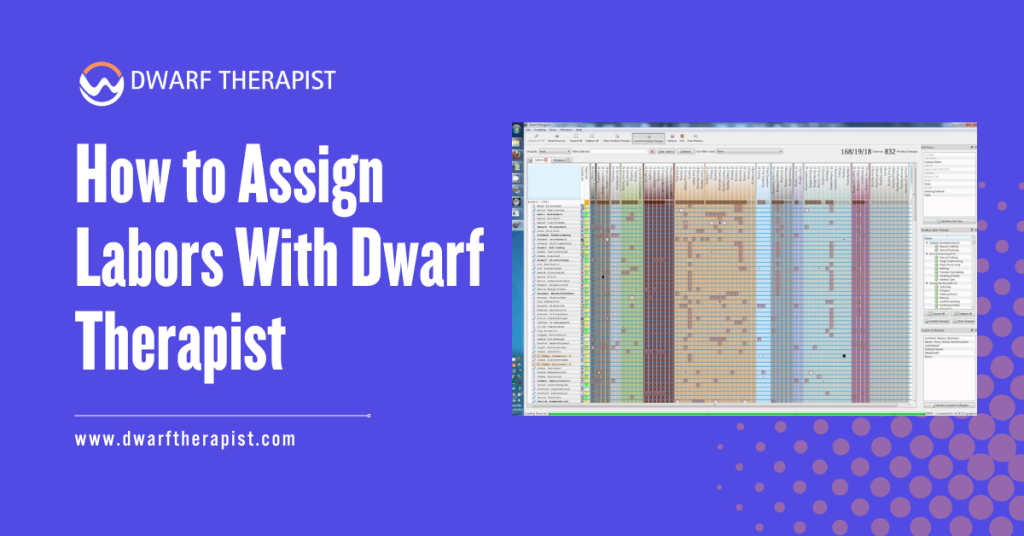
Introduction Labor assignment is the core function that makes Dwarf Therapist worth using. The vanilla Dwarf Fortress interface handles individual labor changes reasonably well for small rosters, but the moment you need to assign the same set of labors to a dozen dwarves simultaneously, or audit which dwarves have a specific labor enabled across a population of eighty, the native interface becomes genuinely slow to work with. Dwarf Therapist solves this through a visual grid where every dwarf is a row and every labor is a column. A single glance shows you the entire labor distribution across your fortress, and a few clicks can reassign multiple dwarves without navigating through individual unit menus. The process is straightforward once you understand the layout and the sequence of actions involved. This guide walks through every step of assigning labors in Dwarf Therapist, from initial connection through batch assignment, role application, and confirming changes registered correctly in the game. It is written for players at all experience levels and applies to both the classic free version and the Steam Premium release of Dwarf Fortress. All guidance is based on community-verified procedures and is intended for informational use. Quick Facts about How to Assign Labors What the Dwarf Therapist Labor Grid Shows You Reading the Grid Layout and Column Structure When Dwarf Therapist successfully connects to a running fortress session, the main window displays a grid with your dwarf roster along the left side and labor categories spanning the columns to the right. Each intersection of a dwarf row and a labor column contains a checkbox or colored indicator showing whether that dwarf currently has that labor enabled. The color and shading of grid cells carry meaning beyond simple on/off states. A filled or highlighted cell indicates an enabled labor. A cell that appears dimmed or empty indicates the labor is disabled for that dwarf. Some versions of Dwarf Therapist use additional color coding to indicate whether a dwarf is currently performing that labor, has a relevant skill for it, or is the best available candidate for it based on skill ranking. Column headers display labor names, and clicking a header sorts the dwarf list by proficiency in that labor category, placing your most skilled candidates at the top. This sorting capability is one of the most useful features for efficient assignment, allowing you to immediately identify which dwarves are best suited for a specific role before making any changes. Understanding Dwarf Rows and Skill Indicators Each dwarf row displays the dwarf’s name, their current profession or role label, and a series of skill indicators alongside the labor checkboxes. The skill indicators show the dwarf’s current proficiency level in relevant areas, which helps distinguish between a dwarf with a high natural aptitude for a labor and one who has it enabled but has never practiced it. Rows can be sorted by multiple criteria including name, profession, stress level, and individual skill values. For large fortress management, sorting by stress level before making labor changes helps identify dwarves who are already overburdened and should have labors removed rather than added. Sorting by a specific skill column before assigning a specialized labor ensures the assignment goes to your most qualified candidates rather than whoever appears at the top of an unsorted list. Clicking on a dwarf’s name row in most versions opens a summary panel showing that dwarf’s full current labor and skill profile. This is useful for reviewing an individual dwarf’s complete assignment state before making targeted changes without needing to scroll across the full column width of the grid. How to Make Individual and Batch Labor Assignments Assigning Labors to a Single Dwarf Individual labor assignment in Dwarf Therapist is as direct as clicking the checkbox at the intersection of the dwarf’s row and the labor column you want to toggle. A single click enables a disabled labor or disables an enabled one. The change is written to game memory immediately and will be reflected in the in-game unit labor panel the next time the game processes that unit. For focused individual assignments, the recommended workflow is to sort the dwarf list by the relevant skill column first, identify the dwarf you want to assign, then click directly on the labor cells you want to enable or disable in that dwarf’s row. There is no confirmation step and no save button. The change applies as soon as the cell is clicked. Steps for assigning labors to a single dwarf: Selecting Multiple Dwarves for Batch Assignment Batch assignment is where Dwarf Therapist delivers its most significant advantage over the native interface. Selecting multiple dwarves simultaneously and applying a labor change to all of them at once compresses what would be dozens of individual menu navigations into a few clicks. To select multiple dwarves, use standard Windows multi-selection controls. Holding Shift and clicking two rows selects all dwarves between them. Holding Control and clicking individual rows selects specific dwarves without selecting those between them. Once multiple dwarves are selected, clicking a labor cell applies the change to all selected dwarves simultaneously rather than just the one whose row you clicked. Common labor assignment problems and practical solutions: Using Roles to Streamline Labor Assignment Creating and Applying Custom Labor Roles Roles are named labor profiles that group multiple labors together under a single label. Instead of clicking individual labor cells for every dwarf in a migrant wave, you create a role called something like Farmer, Hauler, or Craftsdwarf that contains all the labors relevant to that type of dwarf, and then apply the role to any number of dwarves in one action. Creating a role in Dwarf Therapist is done through the roles management panel, typically accessible from the main menu or a dedicated toolbar button, depending on your version. The role editor presents the full labor list and allows you to mark which labors should be enabled and which should be disabled when the role is applied. You name the role, save it, and it becomes available as an option in the right-click context menu when dwarves
Managing Skills & Training Priorities With Dwarf Therapist
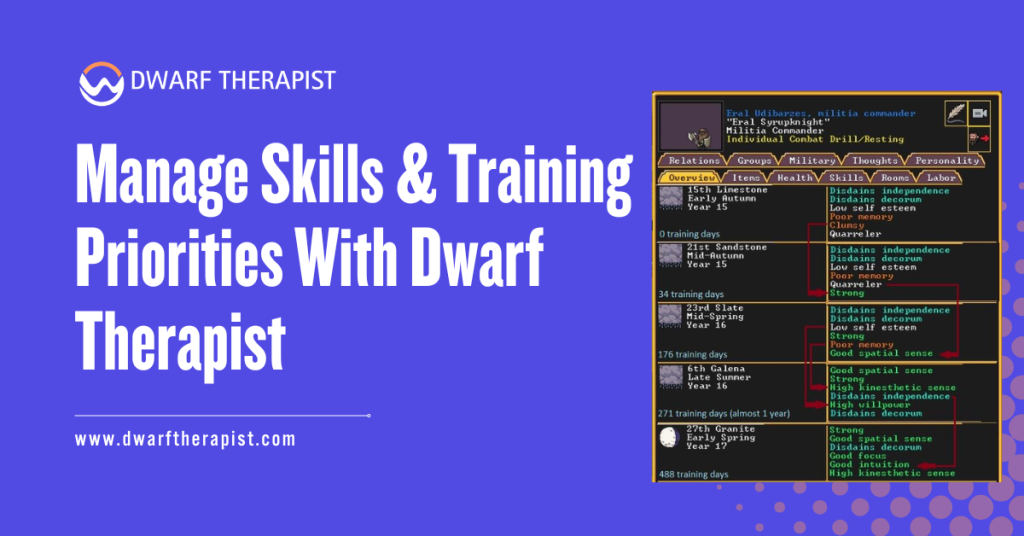
Introduction Managing skills and training priorities with Dwarf Therapist is one of the most practical aspects of running a successful fortress in Dwarf Fortress. Without a reliable external management tool, tracking individual dwarf skill sets across dozens or hundreds of units becomes an overwhelming task. Dwarf Therapist serves as an external companion application that reads live game data and presents it in a structured, editable grid format. It allows players to assign labors, filter skill levels, and build specialized workforces with precision. Quick Facts Managing Skills & Training Priorities With Dwarf Therapist What Dwarf Therapist Actually Does for Skill Management Understanding the full scope of Dwarf Therapist helps players use it more effectively rather than relying on it only for basic labor toggling. Reading and Interpreting the Skill Grid When Dwarf Therapist connects to an active game session, it populates a grid where each row represents one dwarf and each column represents a labor category. Skill levels appear as color coded numbers, ranging from 0 for unskilled up to 20 for legendary status. Players can sort the grid by any column, making it simple to identify the best candidates for a specific role. A dwarf with a Mining skill of 12 and a Farming skill of 2 is clearly better suited for excavation work than food production. The color gradients in the grid provide immediate visual feedback. Darker shades typically indicate higher skill investment, while pale or empty cells signal untrained areas. This allows rapid scanning without reading individual numbers for every dwarf. Assigning Labors Based on Skill Ratings The most effective way to use Dwarf Therapist for training priorities is to match active labors directly to a dwarf’s strongest skills. Enabling labors that align with existing high skill ratings ensures dwarves perform tasks they complete quickly and with quality results. Avoid enabling too many labors on a single dwarf. A dwarf assigned to Mining, Woodcutting, Farming, and Cooking simultaneously will spread attention across all four areas and perform none of them efficiently. A focused labor set of two to four related tasks produces far better results. Dwarf Therapist makes this easy by allowing players to disable all labors with one click and then selectively enable only the priority ones. Common Problems and Solutions: How to Set Training Priorities Effectively Setting training priorities in Dwarf Therapist is not just about enabling labors. It involves deliberate planning around which skills the fortress actually needs and which dwarves have the raw potential to develop those skills fastest. Identifying High Value Skills for Your Fortress Stage Early fortress phases typically demand heavy investment in Mining, Masonry, Carpentry, and Farming. Mid game transitions require Crafting, Smithing, and Medical skills. Late game fortresses need specialized Combat, Brewing, and Artifact creation capacity. Dwarf Therapist allows players to sort dwarves by any skill and immediately see which units have natural aptitude in those areas. Natural aptitude, represented by attribute scores beneath skill levels, determines how quickly a dwarf will improve with practice. Prioritizing dwarves with high Strength and Toughness attributes for military or labor roles, and those with high Creativity and Intuition for crafting roles, produces faster skill progression than assigning tasks randomly. Building Profession Templates for Repeatable Setups Dwarf Therapist includes a profession template system that saves a specific combination of enabled labors under a named profile. Once built, these templates can be applied to any dwarf with a single click. Creating templates for common roles such as Dedicated Miner, Crop Farmer, Combat Medic, or Master Smith eliminates the need for repetitive manual configuration each time a new dwarf migrates to the fortress. Template discipline is essential in large fortresses. Without saved templates, players managing 80 or more dwarves often revert to inconsistent labor assignments that create productivity bottlenecks and idle units. Profession Template Recommended Labors Target Skill Focus Dedicated Miner Mining only Mining, Strength Crop Farmer Farming, Plant Gathering Agriculture, Diligence Combat Medic Healthcare, Diagnosis, Surgery Medical skills, Empathy Master Smith Smithing, Furnace Operation Metalsmithing, Creativity General Laborer Hauling tasks only No skill requirement Siege Engineer Mechanics, Siege Operation Mechanics, Spatial Sense Advanced Skill Prioritization Strategies Once players are comfortable with basic labor assignment, Dwarf Therapist supports more nuanced strategies that improve fortress wide efficiency significantly. Using Filters to Find Skill Gaps The filter system in Dwarf Therapist allows players to display only dwarves who meet specific criteria, such as those with no labors assigned, those below a certain skill threshold in a critical profession, or those currently flagged as unhappy. Running a filter for dwarves with zero labors enabled is a fast way to catch newly arrived migrants who have not yet been configured. Leaving new migrants with default labor settings often results in skill dilution and inefficient task completion. Filtering by skill level also helps identify dwarves who have reached a useful competency threshold and are ready for promotion to more demanding roles. A dwarf who started as a General Laborer and has now reached Skilled level in Masonry is a candidate for a dedicated Mason template. Balancing Military Training With Civilian Labor One of the most common challenges in Dwarf Fortress is determining how much time military dwarves should spend training versus contributing civilian labor. Dwarf Therapist helps manage this balance by making it easy to switch a dwarf between a Military template and a Civilian template depending on current fortress needs. Do not leave military dwarves on full civilian labor while training schedules are active. The game will attempt to fulfill labor demands and pull soldiers away from drills, degrading combat readiness over time. A recommended approach is to keep military dwarves on a limited template of one or two low priority hauling tasks during peace periods, then switch them to a Military Only template when threats are present or training quotas need to be met. Dwarf Therapist makes this template swap fast enough to execute between seasons. Optimizing Long Term Skill Development Long-term skill development in Dwarf Fortress requires consistent labor management over many in-game years. Dwarf Therapist provides the tools to