Introduction
Dwarf Therapist is a portable, folder-based application with no system installer, which means updating it is not as straightforward as running an automatic updater or clicking a single button.
Every new release arrives as a fresh archive that players must extract and configure manually. Without a deliberate approach to preserving your existing setup, an update can silently overwrite the custom roles, labor profiles, and display preferences you have spent time building across multiple fortress sessions.
The good news is that Dwarf Therapist stores its user configuration in separate files entirely separate from the core application files. Understanding which files hold your settings, where they are located, and how to carry them forward into a new version is all you need to update cleanly without losing any customization.
This guide covers that process in full, including what to back up, how to transfer settings correctly, and how to verify everything is working after the update.
All guidance here is based on community-verified procedures and is intended for informational use by Dwarf Fortress players on Windows.
Quick Facts about Updating Dwarf Therapist
- Dwarf Therapist settings are stored in separate configuration files, not embedded in the executable
- Updating the application involves extracting a new version folder and migrating your settings files manually
- Custom roles, labor profiles, and display preferences are the primary data at risk during an update
- Never overwrite your existing Dwarf Therapist folder with a new release without first backing up your configuration files
- Settings file locations may vary slightly between releases depending on how the maintainers structured that version
- The update process does not require uninstalling or deleting your previous version folder
- Keeping the old version folder intact until the new version is confirmed working is a strongly recommended practice
- Dwarf Therapist configuration files are plain text or structured data files that can be opened and reviewed in any text editor
- Version mismatches between Dwarf Therapist and Dwarf Fortress will cause connection failures regardless of how well settings are preserved
- Always confirm the new release is compatible with your current Dwarf Fortress version before beginning the update process.
What Settings Are at Risk When You Update Dwarf Therapist
Which Files Store Your Configuration?
Dwarf Therapist separates its core application logic from user-generated data. The executable and its supporting system files handle the memory-reading and interface functionality.
Your personal configuration, by contrast, lives in a small set of files that the application reads on startup and writes to when you make changes during a session. The primary settings at risk during an update Dwarf Therapist fall into three categories.
Custom roles are the most valuable, as these represent named labor groupings you have defined to quickly assign multiple labors at once to a dwarf type such as a dedicated miner, hauler, or craftsdwarf. Labor display preferences control which columns appear in the grid and in what order, and losing these means rebuilding your visual layout from scratch.
Notification thresholds and stress settings, where configured, are also stored in user-facing files rather than hardcoded into the application.
The specific files that hold these settings are typically found within the application folder itself, often in a subfolder named something along the lines of “share” or “therapist” depending on the release version, or in some builds they appear directly in the root of the application folder as files with extensions such as .ini, .json, or .csv. Locating them before updating is the essential first step that many players skip and later regret.
Why Updates Overwrite Settings Without Warning
Dwarf Therapist does not include an update manager or a settings migration system. When you download and extract a new release, you receive a clean folder containing only the files the maintainers packaged for that version.
If you copy that new folder on top of your existing one or simply start using the new executable without moving your settings files, the application will either use its built-in defaults or fail to find any of your previous configuration.
This is not a flaw in the application design so much as a consequence of its portable structure. Portable applications trade the convenience of automatic updates for the simplicity of running without installation. The tradeoff means that update management, including settings preservation, falls entirely to the user.
Understanding this context makes the backup and migration steps feel less like an obstacle and more like a straightforward part of the update workflow once you have done it once.
How to Back Up Your Dwarf Therapist Settings Before Updating
Locating and Identifying Your Settings Files
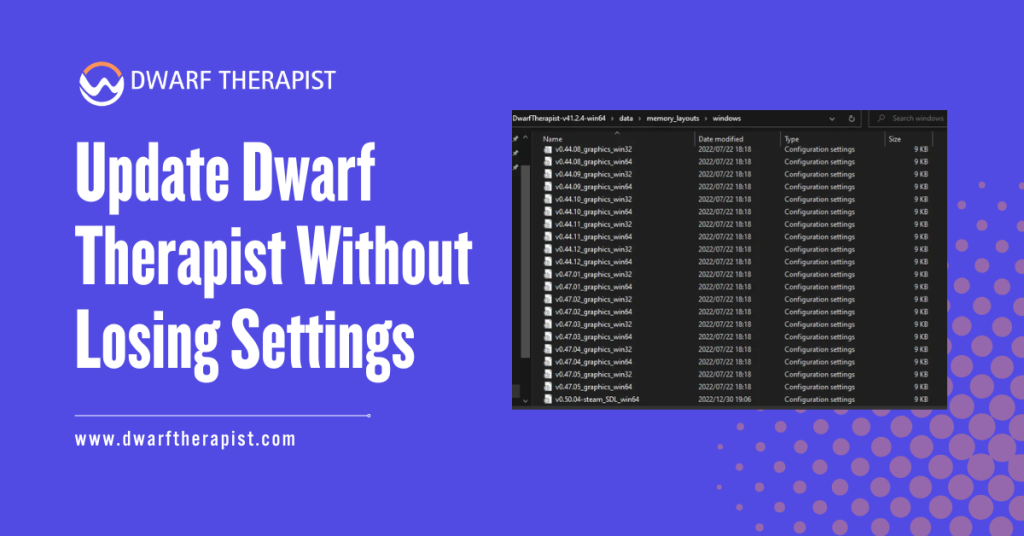
Before downloading a new version, open your existing Dwarf Therapist folder and examine its contents. You are looking for any files that you did not receive as part of the original download, meaning files that were created or modified after your first launch. These are your settings files.
Common files and folders to look for include anything named roles, custom roles, or labor templates, any file with a .ini extension which typically stores display preferences and window configurations, any file with a .json or .csv extension that contains structured data about your labor definitions, and any subfolder that appears to hold user data rather than program resources.
On some versions a folder called “share” contains a subfolder structure where roles and configurations are stored as individual named files.
If you are uncertain which files were part of the original download and which you created, check the file modification dates in Windows Explorer. Files modified after your original installation date are the ones you want to preserve. All original application files will share the same date as when you first extracted the archive.
Steps to locate your settings files:
- Open your Dwarf Therapist folder in Windows Explorer
- Enable the column showing Date Modified by right-clicking the column headers and selecting that option
- Sort by date modified to surface any files changed since your initial extraction
- Note the names and locations of every file or subfolder with a recent modification date
- Cross-reference against the release notes from your current version if available, which sometimes list the expected settings file names explicitly
Creating a Safe Backup Before Proceeding
Once you have identified your settings files, copy them to a backup location before doing anything else.
A dedicated backup folder named something like “DwarfTherapist Settings Backup” alongside your application folder works well and keeps things easy to find if you need to restore.
Do not delete your existing Dwarf Therapist folder at any point during this process. The safest approach is to leave it completely intact throughout the update, extract the new version into a separate new folder, migrate your settings files into the new folder, test the new version, and only then archive or remove the old folder once you have confirmed everything works correctly.
This approach means you always have a working fallback if something goes wrong during the migration.
How to Update Dwarf Therapist and Restore Your Settings
Extracting the New Version Correctly
Download the new Dwarf Therapist release from the official GitHub repository. Confirm before downloading that the release notes specify compatibility with your current Dwarf Fortress version.
Extracting an incompatible version, even with perfect settings migration, will result in connection failures and incorrect data. Extract the new release into a fresh folder that is clearly named with the version number, for example “DwarfTherapist v41.2.4” or whatever the release number is.
Do not extract into your existing folder and do not overwrite any files at this stage. The new folder should contain only the clean files from the archive. Once extracted, open the new folder and examine its structure. Compare it with your old folder structure to understand where the equivalent settings are located in the new version.
In most cases the file and folder structure is consistent between releases, meaning your roles file from the old version belongs in the same relative location in the new version.
Occasionally a release restructures where configuration files are expected, and the release notes will mention this if it applies.
Migrating Settings Files Into the New Version
With both the old and new folders open side by side in Windows Explorer, copy your identified settings files from the old version folder into the matching locations in the new version folder.
Do this one file or subfolder at a time rather than bulk copying the entire old folder, which risks bringing over outdated core files that could conflict with the new version.
Common problems and practical solutions during settings migration:
- New version does not recognize migrated roles file Check if the file format changed between versions by opening both the old and new default roles files in a text editor and comparing their structure; if the format differs, manually recreate your roles using the new file as a template
- Display preferences not applying after migration Confirm the .ini or preferences file was copied to the correct subfolder location in the new version, as some releases changed the expected path
- Application crashes on launch after migration Remove the migrated settings files temporarily and launch with defaults to confirm the new version itself works, then re-add settings files one at a time to identify which file is causing the conflict
- Custom roles appear empty or unnamed This typically indicates the roles file was copied to the wrong location; verify the path matches exactly where the new version expects to find it
- Labor column layout reset to default The display configuration file may have a different name or location in the new version; check release notes for any mention of renamed configuration files
- New version launches but shows wrong game data This is a version mismatch with Dwarf Fortress, not a settings issue; confirm the release is compatible with your exact game version before continuing
After copying your settings files, launch the new version of Dwarf Therapist following the standard sequence: start Dwarf Fortress first, load a fortress, then launch Dwarf Therapist as Administrator if required. When the dwarf grid populates, verify that your custom roles are visible and your labor column layout matches your previous setup.
If both are present and the data looks correct, the migration was successful.
Maintaining a Clean Update Workflow Going Forward
Building a Repeatable Settings Preservation Habit
The players who consistently avoid losing settings are those who treat the backup step as a non-negotiable part of every update cycle, rather than something they do only when they remember.
Building a simple folder structure around your Dwarf Therapist installation makes this easy to maintain over time without adding significant overhead to each update. A practical structure that works well for most players uses a parent folder containing three subfolders: the active version folder you use for gameplay, a backups folder holding dated copies of your settings files, and an archive folder where old version folders go once a new version is confirmed working.
This layout keeps everything in one place, makes it easy to find previous versions if a new release has problems, and ensures your settings backups are always close to the application they belong to.
Creating a dated settings backup takes less than a minute once you know which files to copy. Doing this before every update, and also periodically during a long fortress campaign even when no update is pending, means you can recover from any accidental overwrite or configuration corruption without starting your role definitions from scratch.
Knowing When Settings Files Are Not Worth Migrating
Most settings migrate cleanly between consecutive Dwarf Therapist releases. However, when updating across multiple versions at once, for example jumping from a release several months old to the latest build, there is a higher chance that configuration file formats have changed enough that a direct migration will cause problems rather than solving them.
In these cases, it is sometimes faster and more reliable to rebuild your roles and preferences from scratch in the new version using your old settings files as a reference rather than as a direct copy.
Open your old roles file in a text editor to review the names and labor combinations you had defined, then recreate them through the Dwarf Therapist interface in the new version. This takes more time upfront but eliminates any risk of format conflicts causing crashes or silent data errors. Players updating across more than 2 or 3 version jumps should consider this approach the lower-risk path compared to direct file migration.
Frequently Asked Questions
Will updating Dwarf Therapist automatically delete my custom roles?
Not automatically, but if you extract the new version into your existing folder and allow files to be overwritten, any default configuration files in the new release may replace your modified versions. Always back up first and extract into a separate folder.
Where exactly are Dwarf Therapist settings files stored?
Settings files are stored within the application folder itself, not in a system location like AppData or the registry. Look for files with .ini, .json, or .csv extensions and any subfolder named after configuration categories like roles or share within your Dwarf Therapist folder.
Can I use the same settings files across very different versions of Dwarf Therapist?
In most cases yes for consecutive releases, but jumping across many versions increases the risk of format incompatibilities. Always compare the structure of old and new configuration files before migrating, and rebuild manually if the formats have changed significantly.
Is it safe to keep multiple versions of Dwarf Therapist installed at the same time?
Yes. Because Dwarf Therapist is a portable application, multiple version folders can coexist without conflict. This is actually a recommended practice that provides a working fallback if a new version has issues.
What happens if I launch the new version without migrating my settings?
The application will launch with its built-in default settings. Your custom roles and display preferences will not appear, but your game data and saves are unaffected. You can still migrate your settings files afterward as long as you have not deleted or overwritten them.
Do I need to back up settings after every gameplay session?
Not necessarily after every session, but backing up before every application update is essential. For players who invest significant time in custom role definitions, a weekly or per-fortress backup habit provides good protection against accidental loss.
Can I edit my Dwarf Therapist settings files manually in a text editor?
Yes. Configuration files are human-readable plain text or structured formats like JSON. Experienced players sometimes edit them directly to add or rename roles, though care should be taken to preserve the correct file structure and formatting to avoid parse errors on launch.
What should I do if my migrated settings cause the new version to crash on launch?
Remove the migrated settings files and launch the new version with clean defaults to confirm the application itself works. Then re-add your settings files one at a time, relaunching after each addition, to identify which specific file is causing the crash. Compare that file against the new version default to find the conflict.
Latest Post:
- Domain WHOIS: A Complete Guide to Domain Registration Information
- How Dwarf Therapist Works (Labors, Skills & Assignments Explained)
- Dwarf Therapist Supported Versions (Steam & Classic)
- Dwarf Therapist Features You Should Know (Reports, Filters, Profiles)
- Is Dwarf Therapist Safe? Security, Mods & Stable Downloads