How to Assign Labors With Dwarf Therapist (Step‑by‑Step)
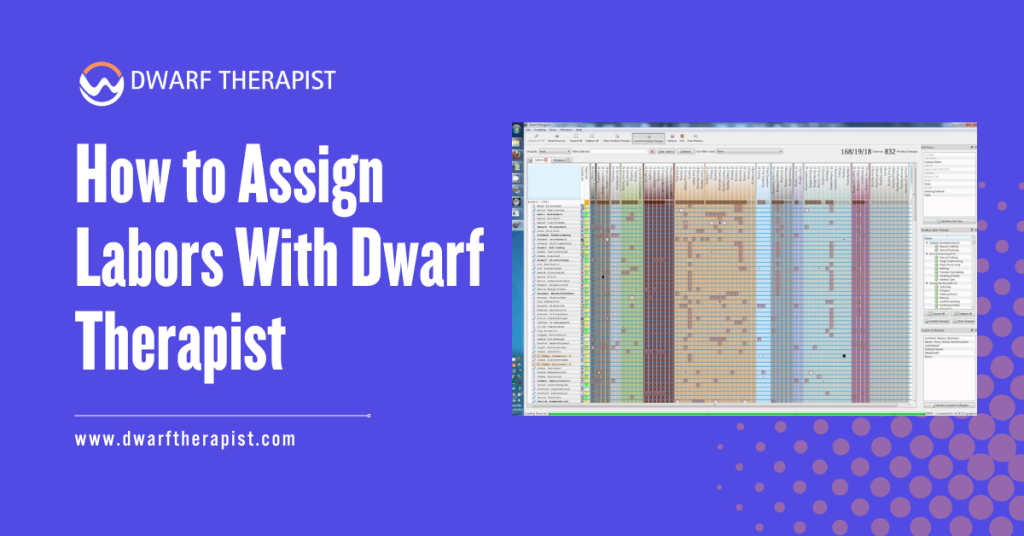
Introduction Labor assignment is the core function that makes Dwarf Therapist worth using. The vanilla Dwarf Fortress interface handles individual labor changes reasonably well for small rosters, but the moment you need to assign the same set of labors to a dozen dwarves simultaneously, or audit which dwarves have a specific labor enabled across a population of eighty, the native interface becomes genuinely slow to work with. Dwarf Therapist solves this through a visual grid where every dwarf is a row and every labor is a column. A single glance shows you the entire labor distribution across your fortress, and a few clicks can reassign multiple dwarves without navigating through individual unit menus. The process is straightforward once you understand the layout and the sequence of actions involved. This guide walks through every step of assigning labors in Dwarf Therapist, from initial connection through batch assignment, role application, and confirming changes registered correctly in the game. It is written for players at all experience levels and applies to both the classic free version and the Steam Premium release of Dwarf Fortress. All guidance is based on community-verified procedures and is intended for informational use. Quick Facts about How to Assign Labors What the Dwarf Therapist Labor Grid Shows You Reading the Grid Layout and Column Structure When Dwarf Therapist successfully connects to a running fortress session, the main window displays a grid with your dwarf roster along the left side and labor categories spanning the columns to the right. Each intersection of a dwarf row and a labor column contains a checkbox or colored indicator showing whether that dwarf currently has that labor enabled. The color and shading of grid cells carry meaning beyond simple on/off states. A filled or highlighted cell indicates an enabled labor. A cell that appears dimmed or empty indicates the labor is disabled for that dwarf. Some versions of Dwarf Therapist use additional color coding to indicate whether a dwarf is currently performing that labor, has a relevant skill for it, or is the best available candidate for it based on skill ranking. Column headers display labor names, and clicking a header sorts the dwarf list by proficiency in that labor category, placing your most skilled candidates at the top. This sorting capability is one of the most useful features for efficient assignment, allowing you to immediately identify which dwarves are best suited for a specific role before making any changes. Understanding Dwarf Rows and Skill Indicators Each dwarf row displays the dwarf’s name, their current profession or role label, and a series of skill indicators alongside the labor checkboxes. The skill indicators show the dwarf’s current proficiency level in relevant areas, which helps distinguish between a dwarf with a high natural aptitude for a labor and one who has it enabled but has never practiced it. Rows can be sorted by multiple criteria including name, profession, stress level, and individual skill values. For large fortress management, sorting by stress level before making labor changes helps identify dwarves who are already overburdened and should have labors removed rather than added. Sorting by a specific skill column before assigning a specialized labor ensures the assignment goes to your most qualified candidates rather than whoever appears at the top of an unsorted list. Clicking on a dwarf’s name row in most versions opens a summary panel showing that dwarf’s full current labor and skill profile. This is useful for reviewing an individual dwarf’s complete assignment state before making targeted changes without needing to scroll across the full column width of the grid. How to Make Individual and Batch Labor Assignments Assigning Labors to a Single Dwarf Individual labor assignment in Dwarf Therapist is as direct as clicking the checkbox at the intersection of the dwarf’s row and the labor column you want to toggle. A single click enables a disabled labor or disables an enabled one. The change is written to game memory immediately and will be reflected in the in-game unit labor panel the next time the game processes that unit. For focused individual assignments, the recommended workflow is to sort the dwarf list by the relevant skill column first, identify the dwarf you want to assign, then click directly on the labor cells you want to enable or disable in that dwarf’s row. There is no confirmation step and no save button. The change applies as soon as the cell is clicked. Steps for assigning labors to a single dwarf: Selecting Multiple Dwarves for Batch Assignment Batch assignment is where Dwarf Therapist delivers its most significant advantage over the native interface. Selecting multiple dwarves simultaneously and applying a labor change to all of them at once compresses what would be dozens of individual menu navigations into a few clicks. To select multiple dwarves, use standard Windows multi-selection controls. Holding Shift and clicking two rows selects all dwarves between them. Holding Control and clicking individual rows selects specific dwarves without selecting those between them. Once multiple dwarves are selected, clicking a labor cell applies the change to all selected dwarves simultaneously rather than just the one whose row you clicked. Common labor assignment problems and practical solutions: Using Roles to Streamline Labor Assignment Creating and Applying Custom Labor Roles Roles are named labor profiles that group multiple labors together under a single label. Instead of clicking individual labor cells for every dwarf in a migrant wave, you create a role called something like Farmer, Hauler, or Craftsdwarf that contains all the labors relevant to that type of dwarf, and then apply the role to any number of dwarves in one action. Creating a role in Dwarf Therapist is done through the roles management panel, typically accessible from the main menu or a dedicated toolbar button, depending on your version. The role editor presents the full labor list and allows you to mark which labors should be enabled and which should be disabled when the role is applied. You name the role, save it, and it becomes available as an option in the right-click context menu when dwarves
Managing Skills & Training Priorities With Dwarf Therapist
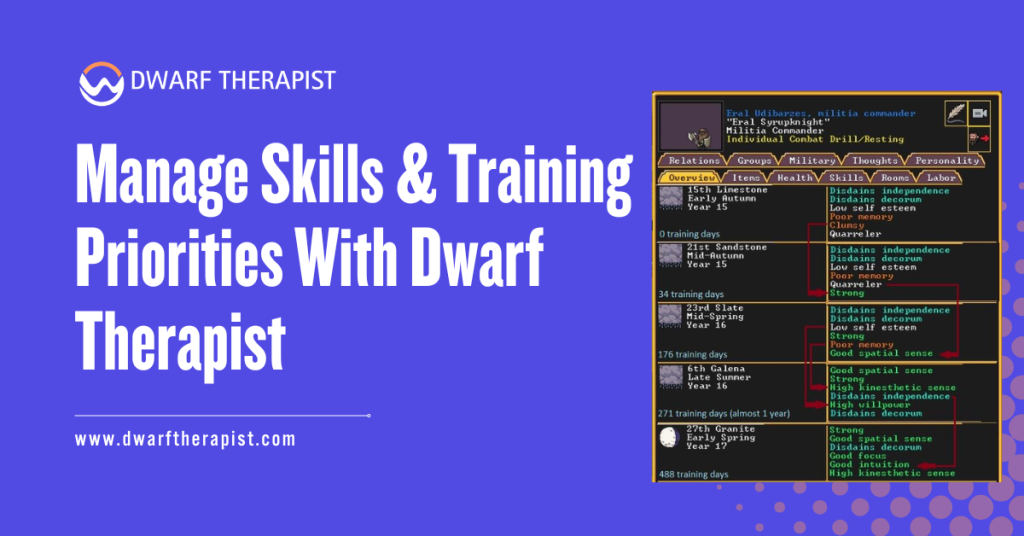
Introduction Managing skills and training priorities with Dwarf Therapist is one of the most practical aspects of running a successful fortress in Dwarf Fortress. Without a reliable external management tool, tracking individual dwarf skill sets across dozens or hundreds of units becomes an overwhelming task. Dwarf Therapist serves as an external companion application that reads live game data and presents it in a structured, editable grid format. It allows players to assign labors, filter skill levels, and build specialized workforces with precision. Quick Facts Managing Skills & Training Priorities With Dwarf Therapist What Dwarf Therapist Actually Does for Skill Management Understanding the full scope of Dwarf Therapist helps players use it more effectively rather than relying on it only for basic labor toggling. Reading and Interpreting the Skill Grid When Dwarf Therapist connects to an active game session, it populates a grid where each row represents one dwarf and each column represents a labor category. Skill levels appear as color coded numbers, ranging from 0 for unskilled up to 20 for legendary status. Players can sort the grid by any column, making it simple to identify the best candidates for a specific role. A dwarf with a Mining skill of 12 and a Farming skill of 2 is clearly better suited for excavation work than food production. The color gradients in the grid provide immediate visual feedback. Darker shades typically indicate higher skill investment, while pale or empty cells signal untrained areas. This allows rapid scanning without reading individual numbers for every dwarf. Assigning Labors Based on Skill Ratings The most effective way to use Dwarf Therapist for training priorities is to match active labors directly to a dwarf’s strongest skills. Enabling labors that align with existing high skill ratings ensures dwarves perform tasks they complete quickly and with quality results. Avoid enabling too many labors on a single dwarf. A dwarf assigned to Mining, Woodcutting, Farming, and Cooking simultaneously will spread attention across all four areas and perform none of them efficiently. A focused labor set of two to four related tasks produces far better results. Dwarf Therapist makes this easy by allowing players to disable all labors with one click and then selectively enable only the priority ones. Common Problems and Solutions: How to Set Training Priorities Effectively Setting training priorities in Dwarf Therapist is not just about enabling labors. It involves deliberate planning around which skills the fortress actually needs and which dwarves have the raw potential to develop those skills fastest. Identifying High Value Skills for Your Fortress Stage Early fortress phases typically demand heavy investment in Mining, Masonry, Carpentry, and Farming. Mid game transitions require Crafting, Smithing, and Medical skills. Late game fortresses need specialized Combat, Brewing, and Artifact creation capacity. Dwarf Therapist allows players to sort dwarves by any skill and immediately see which units have natural aptitude in those areas. Natural aptitude, represented by attribute scores beneath skill levels, determines how quickly a dwarf will improve with practice. Prioritizing dwarves with high Strength and Toughness attributes for military or labor roles, and those with high Creativity and Intuition for crafting roles, produces faster skill progression than assigning tasks randomly. Building Profession Templates for Repeatable Setups Dwarf Therapist includes a profession template system that saves a specific combination of enabled labors under a named profile. Once built, these templates can be applied to any dwarf with a single click. Creating templates for common roles such as Dedicated Miner, Crop Farmer, Combat Medic, or Master Smith eliminates the need for repetitive manual configuration each time a new dwarf migrates to the fortress. Template discipline is essential in large fortresses. Without saved templates, players managing 80 or more dwarves often revert to inconsistent labor assignments that create productivity bottlenecks and idle units. Profession Template Recommended Labors Target Skill Focus Dedicated Miner Mining only Mining, Strength Crop Farmer Farming, Plant Gathering Agriculture, Diligence Combat Medic Healthcare, Diagnosis, Surgery Medical skills, Empathy Master Smith Smithing, Furnace Operation Metalsmithing, Creativity General Laborer Hauling tasks only No skill requirement Siege Engineer Mechanics, Siege Operation Mechanics, Spatial Sense Advanced Skill Prioritization Strategies Once players are comfortable with basic labor assignment, Dwarf Therapist supports more nuanced strategies that improve fortress wide efficiency significantly. Using Filters to Find Skill Gaps The filter system in Dwarf Therapist allows players to display only dwarves who meet specific criteria, such as those with no labors assigned, those below a certain skill threshold in a critical profession, or those currently flagged as unhappy. Running a filter for dwarves with zero labors enabled is a fast way to catch newly arrived migrants who have not yet been configured. Leaving new migrants with default labor settings often results in skill dilution and inefficient task completion. Filtering by skill level also helps identify dwarves who have reached a useful competency threshold and are ready for promotion to more demanding roles. A dwarf who started as a General Laborer and has now reached Skilled level in Masonry is a candidate for a dedicated Mason template. Balancing Military Training With Civilian Labor One of the most common challenges in Dwarf Fortress is determining how much time military dwarves should spend training versus contributing civilian labor. Dwarf Therapist helps manage this balance by making it easy to switch a dwarf between a Military template and a Civilian template depending on current fortress needs. Do not leave military dwarves on full civilian labor while training schedules are active. The game will attempt to fulfill labor demands and pull soldiers away from drills, degrading combat readiness over time. A recommended approach is to keep military dwarves on a limited template of one or two low priority hauling tasks during peace periods, then switch them to a Military Only template when threats are present or training quotas need to be met. Dwarf Therapist makes this template swap fast enough to execute between seasons. Optimizing Long Term Skill Development Long-term skill development in Dwarf Fortress requires consistent labor management over many in-game years. Dwarf Therapist provides the tools to
How to Use Dwarf Therapist Profiles for Fast Fortress Setup
Introduction Dwarf Therapist has been a staple utility in the Dwarf Fortress community for over a decade. It simplifies one of the most time-consuming aspects of fortress management: assigning and maintaining dwarf labor roles. The profile system within Dwarf Therapist takes this a step further by letting you build reusable templates that make fortress setup faster, more consistent, and far less error-prone. Quick Facts Dwarf Therapist Profiles This guide explains how to use those profiles effectively, from installation to practical application. What Are Dwarf Therapist Profiles and How Do They Work Understanding the Profile System A profile in Dwarf Therapist is essentially a saved snapshot of labor assignments. It defines which jobs a dwarf with a specific role should perform, which skills take priority, and how the tool should group or filter dwarves. When you create a profile, you are building a reusable template. That template can be applied to individual dwarves or to an entire labor category with a single action. This removes the need to manually configure each dwarf every time you start a new fortress or receive a new migrant wave. Profiles are stored locally as configuration files. They persist between sessions and can be shared with other players or imported from community sources. This makes them especially useful for players who run multiple fortresses with similar structural goals. Types of Profiles and Their Functions Dwarf Therapist supports several approaches to profile use. Role-based profiles assign a dwarf to a specific function such as farmer, miner, crafter, or hauler. These profiles activate only the relevant labors and disable conflicting ones. Hybrid profiles are more flexible. They allow a dwarf to cover multiple roles, which is useful in early fortress stages when the population is low, and every dwarf must contribute across several areas. Skill-weighted profiles prioritize labors based on a dwarf’s natural aptitudes. If a dwarf arrives with high natural skill in masonry, a skill-weighted profile ensures that masonry tasks are enabled and competing labors are minimized. Common Problems and Solutions: Setting Up Dwarf Therapist for First Use Installation and Version Matching Download Dwarf Therapist only from the official GitHub repository maintained by the Dwarf Fortress Therapist community project. Avoid third-party download sites as these may distribute outdated or modified builds. Version matching is the most critical step. Dwarf Therapist reads directly from Dwarf Fortress memory addresses. If the versions are mismatched, the tool will either fail to launch or display incorrect data that can corrupt labor assignments. Check the release notes of each Dwarf Therapist version carefully. They list the specific Dwarf Fortress builds they support. Using the Steam version of Dwarf Fortress requires a different Dwarf Therapist build than the classic version. Configuring Initial Preferences Once installed, open Dwarf Therapist while Dwarf Fortress is running with a loaded save. The main grid will populate with your current dwarves and their labor states. Before creating or applying profiles, navigate to the preferences panel. Set your preferred column layout to display the labor categories you use most. Disable any labor columns irrelevant to your playstyle to reduce visual clutter. Enable the skill overlay feature. This adds a color-coded indicator to each cell showing dwarf aptitude for that labor. It is essential for making informed decisions when applying or building skill-weighted profiles. Profile Type Best Use Case Labor Scope Skill Sensitivity Role-Based Stable mid-game fortress Narrow, focused Low Hybrid Early game, small population Broad, flexible Medium Skill-Weighted Optimized specialist roles Targeted High Community Preset Fast setup, standard builds Variable Variable How to Create and Save Custom Profiles Building a Profile From Scratch To create a new profile, select a dwarf whose labor configuration you want to use as a template. Enable the laborers you want to perform that role. Disable all others deliberately rather than leaving them in default states. Once the configuration is set, navigate to the profiles menu and select the option to save the current labor set as a named profile. Give it a descriptive name that clearly reflects the role, such as “Early Miner,” “Full Hauler,” or “Dedicated Brewer.” Avoid creating overly broad profiles that enable too much labor. Dwarves assigned too many tasks will spread their time inefficiently and fail to develop skills in priority areas. Editing and Organizing Saved Profiles Profiles can be edited at any time. Open the saved profile, adjust the labor selections, and save over the existing file or save as a new variant. Maintaining versioned profiles, such as “Farmer Early Game” and “Farmer Mid Game,” gives you flexibility as fortress needs shift. Organize profiles into categories using naming conventions. A consistent naming structure makes it faster to locate and apply the right profile during busy gameplay sessions. Best practices for profile organization: Applying Profiles for Fast Fortress Setup Early Game Application Strategy The first thirty in-game days of a fortress are the most demanding for labor management. Applying profiles immediately after embark removes the need to configure each dwarf individually during this critical window. Begin with a small set of essential profiles: one for mining, one for wood cutting and construction, one for food and farming, and one for a general laborer profile. Apply these to your starting seven dwarves based on their skill strengths visible in the skill overlay. Do not apply identical profiles to multiple dwarves unless their roles are genuinely interchangeable. Early-game labor coverage diversity is more important than specialization. Managing Migrant Waves With Profiles Each migrant wave introduces new dwarves with undefined labor states. Without a profile system, assigning these dwarves manually can significantly disrupt gameplay flow. With saved profiles ready, assess each new migrant’s skills using the skill overlay. Match them to the closest appropriate profile and apply it in seconds. This keeps your workforce organized without interrupting active management tasks. For large migrant waves of ten or more dwarves, use the bulk apply feature with caution. Apply role-specific profiles to skill-matched subgroups rather than applying a single profile to all arrivals. This preserves the efficiency of skill development as your population
How to Optimize Work Orders Using Dwarf Therapist
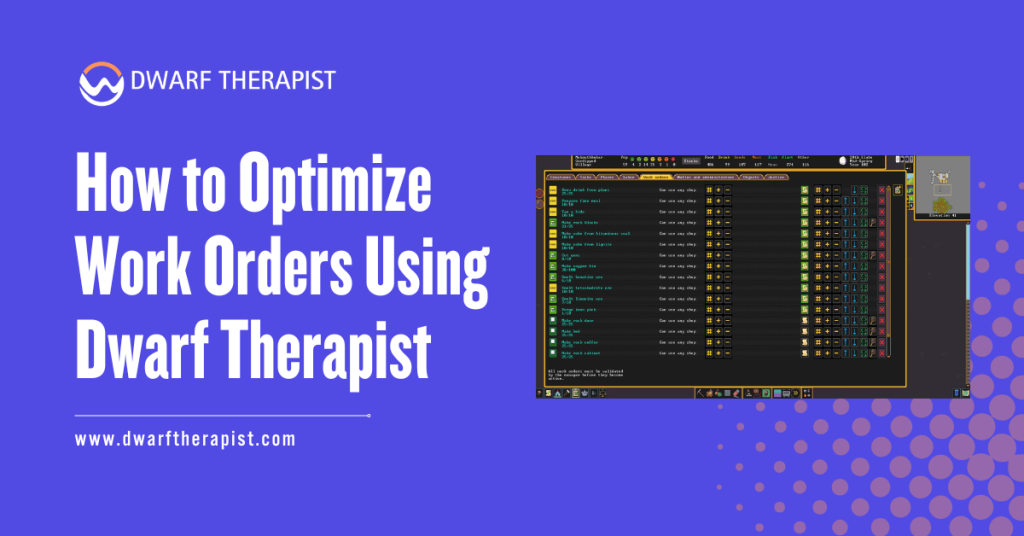
Introduction Dwarf Therapist is most commonly used for broad labor setup, but its real power emerges when applied to production workflows. Matching the right dwarves to the right workshop roles, at the right population scale, is what separates a functional fortress from an efficient one. This guide covers how to use Dwarf Therapist specifically to optimize work orders, reduce production bottlenecks, and maintain consistent output across all workshop types. Quick Facts How to Optimize Work Orders Using Dwarf Therapist What Is Work Order Optimization in Dwarf Therapist Labor Assignments and Work Orders Work orders in Dwarf Fortress are instructions issued through the manager interface. They tell the game to produce a set quantity of a specific item. However, the game only assigns a dwarf to fulfill a work order if that dwarf has the corresponding labor enabled. Dwarf Therapist controls labor enabling and disabling. This means it directly determines which dwarves are eligible to pick up any given work order. If labor assignments are too broad, unqualified dwarves compete for jobs they perform slowly. If assignments are too narrow, work orders queue without being claimed. Optimization through Dwarf Therapist means calibrating exactly how many dwarves have each workshop labor enabled, and ensuring those dwarves have the skill levels that match the quality and speed your production requires. Why Default Labor States Cause Production Inefficiency New dwarves arrive with a mix of default labor states that rarely align with fortress production needs. Some arrive with labors enabled that directly conflict with your active work orders. Others have valuable skills that go unused because the corresponding labor was never activated. The base game interface makes it time-consuming to audit and correct these states across large populations. Dwarf Therapist solves this by presenting every dwarf and every labor in a single scrollable grid, making mismatches immediately visible. Without active management through a tool like Dwarf Therapist, most fortresses develop labor bloat. Too many dwarves share too many labors, causing constant job interruptions, skill stagnation, and workshop queues that process slower than they should. Common Problems and Solutions: Setting Up Dwarf Therapist for Work Order Management Organizing the Labor Grid for Production Visibility Before optimizing any work order, configure Dwarf Therapist’s column layout to display only production-relevant labors. Remove hauling, cleaning, and social labors from view temporarily. This narrows your focus to workshop-critical assignments. Enable the skill overlay on all visible columns. The overlay uses color-coding to show each dwarf’s aptitude level for each displayed labor. This allows you to identify at a glance which dwarves are genuinely skilled in a labor versus which ones merely have it enabled. Sort dwarves by skill level within a specific labor column when preparing to assign workshop roles. This surfaces your most capable workers immediately and allows you to build efficient specialist assignments without individually reviewing every dwarf. Using Filters to Isolate Workshop Workers Dwarf Therapist’s filter system allows you to create persistent views that show only specific subsets of your population. Create a named filter for each major workshop category: stone crafting, metalworking, the wood industry, food production, and textile work. These filtered views let you manage each production area independently without being distracted by unrelated labors or worker groups. When a work order stalls, load the relevant filter and immediately see which dwarves are assigned, how skilled they are, and whether conflicts exist. Filters also reduce the risk of accidental labor changes. When only the relevant dwarves and labors are visible, the chance of toggling the wrong assignment during a fast-paced session drops significantly. Workshop Type Recommended Assigned Workers Skill Priority Labor Conflicts to Avoid Forge and Smelter 1 to 2 specialists Metalsmithing, Smelting Mining, Hauling Carpenter Workshop 1 to 3 workers Carpentry, Wood Cutting Farming, Cooking Kitchen and Still 1 to 2 per station Cooking, Brewing Construction, Mining Mason Workshop 2 to 4 workers Masonry, Engraving Hauling, Woodcutting Clothier and Loom 1 to 2 specialists Weaving, Spinning Stone, Metal labors Matching Dwarf Skills to Active Work Orders Reading Skill Data to Assign the Right Workers The skill overlay in Dwarf Therapist provides aptitude ratings for every dwarf across every labor. These ratings range from no skill through novice, competent, skilled, proficient, expert, and master levels. Higher skill means faster task completion and better output quality. When a work order requires quality output, such as decorated furniture, trade goods, or military equipment, enable that workshop labor exclusively for dwarves rated at skilled level or above. Disable it for lower-skilled dwarves entirely to prevent them from claiming the job and producing inferior results. For bulk production work orders where quality is secondary, such as producing rock crafts for trade, a wider skill range is acceptable. Enable the labor across several dwarves to increase throughput speed without quality concerns. Balancing Specialist Depth Against Workforce Flexibility Pure specialist assignment produces the fastest, highest quality work in any single workshop. However, a fortress relying entirely on specialists becomes fragile. If a specialist dwarf is injured, on a mood, or attending a party, that workshop halts entirely. Dwarf Therapist allows you to designate a primary specialist and one backup worker per critical workshop. The backup has labor enabled but is assigned a lower priority due to reduced labor enablement elsewhere. This maintains production continuity without creating the job competition that comes from broad labor assignment. Guidelines for specialist depth by fortress stage: Advanced Optimization Techniques for High-Output Fortresses Rotating Labor Assignments With Seasonal Production Goals Fortress production needs shift across seasons. Early autumn demands food stockpiling. Winter requires fuel and material preparation. Spring brings construction and expansion. Summer supports military preparation and trade. Dwarf Therapist makes it practical to rotate labor assignments in line with these seasonal cycles. Build season-specific profile variants for key roles. A farmer profile for growing season enables plant gathering and food processing alongside farming. An off-season variant redistributes that dwarf toward construction or crafting labors. Applying these rotations takes under two minutes with saved profiles. The production benefit over a full in-game year significantly outpaces the time investment required to set up the profile variants.
How to Use Dwarf Therapist With Modded UI (Steam UI+ or Phoebus)
Introduction Using Dwarf Therapist with a modded UI such as Steam UI+ or Phoebus is entirely achievable, but it requires understanding a few compatibility layers that differ from a standard vanilla installation. Players who switch to graphical tilesets or enhanced interface packs sometimes find that Dwarf Therapist behaves unexpectedly or fails to connect without additional configuration. The core reason for this is straightforward. Dwarf Therapist reads game memory directly, and modded UI packages often ship with specific executable builds or file structures that differ from the base game. Knowing how to align these components correctly makes the setup process reliable and repeatable. Quick Answer about How to Use Dwarf Therapist With Modded UI What Modded UIs Actually Change in Dwarf Fortress Understanding what a modded UI does and does not modify is the foundation of troubleshooting any Dwarf Therapist compatibility issue. Many players assume graphical changes affect tool connectivity, but the relationship is more specific than that. Difference Between Tileset Mods and Executable Mods Tileset based mods such as Phoebus replace the graphic assets used to render the game world. These include character sprites, terrain tiles, and interface icons. They do not alter the game logic, memory addresses, or the underlying data structures that Dwarf Therapist reads. A pure tileset installation alongside an unmodified executable will behave identically to a vanilla installation from Dwarf Therapist’s perspective. The tool will connect, read skill data, and write labor changes without any additional steps required. The situation changes when a modded UI distribution includes a custom or patched game executable. Some older Phoebus packages and certain community bundles shipped with executables that differed from the official release, which in turn shifted memory addresses and broke standard offset files. How Steam UI+ Interacts With Dwarf Therapist Steam UI+ is primarily a quality of life enhancement layer for the Steam release of Dwarf Fortress. It typically modifies the interface presentation, key bindings, and visual layout rather than the core executable binary. Because the Steam version of Dwarf Fortress uses a distinct memory layout from the classic version, Dwarf Therapist requires Steam specific offset files regardless of whether UI+ is active. The presence of Steam UI+ itself does not introduce additional offset complexity in most cases. Players who experience connection failures after installing Steam UI+ should first confirm they are using the Steam compatible Dwarf Therapist release rather than a version built for the classic game. This single version mismatch accounts for the majority of reported issues in this setup. How to Configure Dwarf Therapist for a Modded UI Installation Correct configuration follows a specific sequence. Skipping steps or performing them out of order is the primary cause of persistent connection failures in modded setups. Verifying Your Game Version and Matching Offset Files Before launching anything, identify the exact version number of your Dwarf Fortress installation. On Steam, this appears in the game properties panel. For classic installations, the version string displays on the main menu screen. Navigate to the Dwarf Therapist releases page on its official repository and locate the release that explicitly lists support for your game version. Download that specific release rather than defaulting to the most recent one. Inside the Dwarf Therapist installation directory, locate the folder named released or memory_layouts. This folder contains the offset files that tell Dwarf Therapist where to read data in the game’s memory. Confirm the correct layout file for your operating system and game version is present. Resolving Offset Mismatches in Phoebus Installations Phoebus installations that include a modified executable require a corresponding custom offset file. Standard offset files will not align correctly with a patched binary, and Dwarf Therapist will either fail to connect or display corrupted data. Do not attempt to use a standard offset file with a known patched executable. The result is unreliable data that can mislead labor decisions rather than informing them. The recommended resolution is to source the Phoebus compatible offset file from the same community distribution that provided the Phoebus package. Many Phoebus bundles include a preconfigured Dwarf Therapist folder with matching layouts already in place. Common Problems and Solutions: Setting Up Profession Templates With a Modded UI Active Profession templates in Dwarf Therapist function independently of the active UI mod. The template system stores labor configurations locally and applies them through memory writes, which are unaffected by graphical layers. Creating Templates That Work Across UI Configurations Building profession templates while a modded UI is active produces fully portable templates. Because templates store labor toggle states rather than any graphical or UI data, they remain valid whether the player later switches between UI mods or returns to vanilla. A well structured template library covers the core production roles a fortress requires across its development stages. Start by building templates for the highest priority roles specific to your play style before expanding to secondary and tertiary assignments. Switching Between UI Mods Without Losing Template Data Template data is stored in the Dwarf Therapist configuration files on the local system, not inside the game save or the UI mod directory. This means switching from Phoebus to Steam UI+ or back to vanilla does not erase or affect saved templates. Always back up the Dwarf Therapist configuration folder before reinstalling or updating the tool. Updates occasionally reset the local configuration to default values, removing custom templates that have not been exported or separately preserved. The configuration folder location varies by operating system. On Windows it typically resides in the application data directory associated with the Dwarf Therapist installation path. Confirming this location before any update protects template investments made over many play sessions. UI Configuration Offset File Needed Template Compatibility Labor Write Support Vanilla Steam Steam specific layout Full Yes Steam UI+ Steam specific layout Full Yes Phoebus (pure tileset) Standard classic layout Full Yes Phoebus (patched executable) Distribution specific layout Full Requires correct offset Classic Vanilla Classic layout Full Yes Custom community bundle Bundle provided layout Full Requires matching file Troubleshooting Dwarf Therapist Connectivity With Modded Setups Persistent connectivity issues in modded environments almost always trace