How to Download & Install Dwarf Therapist on Windows
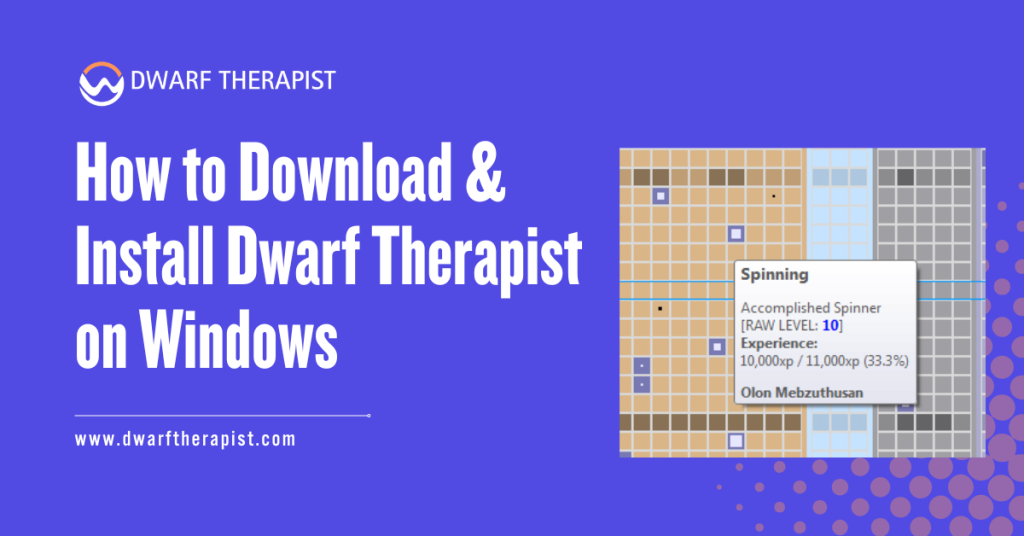
Introduction Dwarf Therapist is one of the most widely used third-party utilities in the Dwarf Fortress community. It provides a visual, grid-based labor management interface that reads live data from an active game session, giving players a level of control and oversight that the vanilla game interface does not natively replicate in the same format. For Windows users, the installation process is straightforward once you know the correct source, version requirements, and configuration steps. Skipping any of these steps is the most common cause of connection failures and data display errors that new users encounter. This guide covers the full process from download through first launch, including compatibility checks, common errors, and safe usage practices. It is written for informational purposes and reflects community-verified procedures for the Windows platform. Quick Facts How to Download & Install Dwarf Therapist on Windows What Is Dwarf Therapist and Why Windows Users Need the Right Version Understanding Version Dependency and Compatibility Dwarf Therapist works by connecting to the Dwarf Fortress process’s memory. It reads specific memory addresses to extract data about your dwarves, including their skills, labors, stress levels, and current assignments. Because these memory addresses are unique to each version of the game, a mismatch between your game version and your Dwarf Therapist version will result in incorrect or missing data. This version dependency is the single most important factor to understand before downloading. Bay 12 Games updates Dwarf Fortress periodically, and each update can shift the memory layout the tool depends on. Community maintainers on GitHub release matching updates for Dwarf Therapist, but there is often a short window after a game patch where no compatible version is yet available. Before downloading, confirm your exact Dwarf Fortress version number. In the classic free version, the version number appears on the main menu screen. In the Steam Premium release, it is visible in the game properties within your Steam library. What the Tool Does and Does Not Do on Windows On Windows, Dwarf Therapist launches as a standalone executable. It does not install in the traditional sense through a system-level installer. Instead, it runs from a folder you place anywhere on your system, which also makes it easy to remove without leaving registry entries or system files behind. Players using the Steam Premium version should specifically seek out builds labeled for that release, as the memory structure differs from the classic free version. How to Download Dwarf Therapist Safely on Windows Finding the Official GitHub Repository The only verified and safe source for Dwarf Therapist is its official GitHub repository. Search for “Dwarf Therapist GitHub” and look for the repository under the community maintainer account that shows recent commit activity and active release tags. The repository will have a Releases section on the right side of the page listing all available versions with their corresponding Dwarf Fortress compatibility notes. Do not download Dwarf Therapist from forum posts, file-sharing sites, or third-party mirrors. These sources may host outdated versions that are incompatible with current game releases, or in rare cases, modified builds with unknown changes to the codebase. Steps to locate and download the correct release: Verifying the Download Before Extraction After downloading, take a moment to verify the file before extracting it. Check the file size against what is listed on the GitHub release page. A significantly smaller file than expected may indicate an incomplete download. Security note for Windows users: Some antivirus applications, including Windows Defender, may flag Dwarf Therapist during download or extraction because memory-reading applications share behavioral patterns with monitoring software. This is a documented false positive. If you trust the source as the verified GitHub repository, you can allow the file through your antivirus. If you are uncertain, you can upload the file to a service like VirusTotal for a multi-engine scan before running it. Installing and Configuring Dwarf Therapist on Windows First Launch and Initial Setup Dwarf Therapist does not use a traditional installer. Once extracted, the application is ready to run from the folder. However, the launch sequence matters. You must start Dwarf Fortress first and load or generate a fortress before opening Dwarf Therapist. Launching the tool before the game is running will result in a connection error or blank dwarf list. Follow this sequence for a successful first launch: If the roster does not populate, the most common cause is a version mismatch. Confirm again that your Dwarf Therapist release matches your exact Dwarf Fortress version before troubleshooting further. Configuring Labor Roles and Display Settings Once connected, Dwarf Therapist presents a grid with your dwarves listed as rows and available labors displayed as columns. Checkboxes indicate current labor assignments, and you can click individual boxes or select multiple dwarves to apply batch changes. Common setup and configuration problems and practical solutions: Role definitions in Dwarf Therapist allow you to create custom labor profiles. A role groups a set of labors together under a named category, which you can then apply to multiple dwarves at once. Setting up roles for common dwarf types, such as dedicated miners, haulers, craftsdwarves, and military personnel, saves significant time during migrant waves when new dwarves arrive and need quick assignment. The display can be customized to show or hide specific labor columns, reducing visual clutter for players who only manage a subset of available labors. Column headers are clickable for sorting, allowing you to quickly find your most skilled dwarves in a given area. Using Dwarf Therapist Effectively After Installation Best Practices for Ongoing Use Dwarf Therapist is most valuable as a periodic management tool rather than something you leave open continuously during gameplay. Opening it when a migrant wave arrives, after a significant skill-change season, or when reorganizing your workforce gives you the clearest, most actionable snapshots of your population. Leaving it open during intense gameplay moments such as sieges or large construction projects adds minimal value and introduces a slight risk of the tool falling out of sync temporarily if the game pauses for extended periods or if saves and loads occur while the tool is connected.
How to Install Dwarf Therapist on macOS & Linux

Introduction Dwarf Therapist is one of the most widely used companion tools for Dwarf Fortress, offering an external labor and skill management interface that the base game simply does not provide. While Windows users have historically had the most straightforward installation experience, macOS and Linux players have their own reliable paths to get the tool running correctly. Understanding the installation process on these platforms requires some familiarity with terminal commands, package managers, and version compatibility. None of this is particularly complex, but it does require following steps in the correct order. Skipping or reordering steps is the most common reason installations fail. This guide walks through the complete Dwarf Therapist installation process for both macOS and Linux, covering prerequisites, compatibility checks, build requirements, and post-installation configuration. Whether you are running the Steam release of Dwarf Fortress or the classic Bay 12 version, the guidance here applies to both. Quick Facts How to Install Dwarf Therapist on macOS & Linux What You Need Before Installing Dwarf Therapist System Requirements and Dependencies Before attempting installation on either platform, confirming that your system meets the necessary prerequisites will save significant troubleshooting time later. Dwarf Therapist is a Qt-based application, meaning it depends on the Qt framework being available either as a prebuilt dependency or compiled alongside the tool. On macOS, the required dependencies are Xcode Command Line Tools, Homebrew, Qt 5 or Qt 6 depending on the Dwarf Therapist version, and CMake. These are all freely available and installable through standard channels. macOS versions from Monterey onward have been the most commonly tested, though some users have reported success on older releases with additional configuration steps. On Linux, requirements vary by distribution. The core dependencies across most distributions include Qt5 or Qt6 development libraries, CMake version 3.12 or higher, a working C++ compiler such as GCC or Clang, and the Git command line tool for cloning the repository. Many distributions also require the libqt5x11extras package or its Qt6 equivalent for proper window integration. Check your installed version of Dwarf Fortress before proceeding. The version number is visible on the in-game main menu and in the game’s installation folder. You will need this version number to select the correct Dwarf Therapist release from the GitHub releases page. Finding the Correct Dwarf Therapist Version The Dwarf Therapist project is maintained on GitHub, with an official repository under the username mifki and several community forks. The releases page lists each version, with notes indicating which Dwarf Fortress versions it supports. This compatibility information is not always prominently displayed, so reading the release notes carefully is important. For the Steam version of Dwarf Fortress, look for release notes that explicitly mention Steam or the specific numerical version matching your game. For the classic Bay 12 version, the version number format differs slightly and will be noted separately in compatible Dwarf Therapist releases. If no prebuilt binary is available for your platform in a given release, you will need to build from source using the steps below. This is a common situation for macOS users in particular, where prebuilt binaries are not consistently provided across all releases. How to Install Dwarf Therapist on macOS Installing Dependencies with Homebrew The most reliable installation method on macOS uses Homebrew to manage dependencies before building Dwarf Therapist from source. If Homebrew is not already installed, open Terminal and run the installation command from the official Homebrew website at brew.sh. The installation script handles everything required and does not need elevated permissions beyond what it requests during setup. Once Homebrew is available, install the required dependencies by running the following commands in Terminal one at a time: After installation, Qt needs to be added to your PATH so that the build system can locate it. Add the following line to your shell configuration file, which will be .zshrc on most modern macOS installations: After saving that change, reload your shell configuration by running: Confirm that Qt is accessible by running: If a version number is returned, the dependency is correctly installed and visible to the build system. If the command is not found, revisit the PATH configuration step before continuing. Building and Running Dwarf Therapist on macOS With dependencies in place, clone the Dwarf Therapist repository from GitHub. Navigate in Terminal to a directory where you want to store the project files, then run: Create a build directory to keep compiled files organized separately from source files: Run CMake to configure the build, then compile: The -j4 flag runs four parallel compile jobs, which speeds up the process on most modern machines. Adjust this number based on your available CPU cores if preferred. Once compilation completes, the Dwarf Therapist application bundle will be located inside the build directory. Before launching it, Dwarf Fortress must already be running with a fortress loaded or a game in progress. Open Dwarf Therapist from the build output location, and it will attempt to detect the running Dwarf Fortress process automatically. On macOS, system privacy settings may block Dwarf Therapist from accessing another application’s memory. If the tool fails to connect or shows no dwarves after loading, navigate to System Settings, then Privacy and Security, then accessibility or Input Monitoring depending on your macOS version, and grant Dwarf Therapist the necessary permissions. A system restart may be required after changing these settings. Common problems and solutions specific to macOS installation: How to Install Dwarf Therapist on Linux Package Manager Installation on Supported Distributions Several Linux distributions include Dwarf Therapist in their official or community-maintained package repositories, which is the simplest installation path when available. The package may not always correspond to the latest release, so confirming version compatibility with your installed Dwarf Fortress version before installing via package manager is important. On Debian and Ubuntu-based distributions, check for availability with: If the package is listed, install it with: On Arch Linux and Arch-based distributions, Dwarf Therapist is available through the AUR (Arch User Repository). Using an AUR helper such as yay simplifies the process: On Fedora and RHEL-based distributions, availability through the
Setting Up Dwarf Therapist for Steam Dwarf Fortress
Introduction The Steam Premium release of Dwarf Fortress brought significant changes to the game’s interface, graphics, and underlying memory structure. While these improvements made the game more accessible to a broader audience, they also introduced compatibility challenges for third-party tools like Dwarf Therapist that depend on reading specific memory addresses within a running game process. Setting up Dwarf Therapist for the Steam version of Dwarf Fortress is not identical to configuring it for the classic free release. The memory layout differs between the two versions, the launch environment is managed through Steam rather than a standalone executable, and certain system permission behaviors on Windows interact differently when the game runs through the Steam client. This guide walks through the full setup process specifically for the Steam Premium version of Dwarf Fortress, covering compatibility requirements, download steps, launch configuration, and troubleshooting for the most common issues players encounter in this specific setup. All guidance here is intended for informational purposes and reflects community-verified procedures. Quick Facts about Setting Up Dwarf Therapist What Makes the Steam Version of Dwarf Fortress Different for Dwarf Therapist Memory Structure Changes in the Steam Premium Release When Bay 12 Games released Dwarf Fortress on Steam in December 2022, the codebase received its most substantial overhaul in years. New graphical rendering systems, a revised interface layer, and updated data structures were all introduced alongside the premium tile-based visual presentation. These changes affected how the game stores and organizes data in memory at runtime. Dwarf Therapist reads specific memory offsets to locate dwarf attributes, labor assignments, stress values, and skill levels within the running game process. In the classic version, those offsets had been documented and stable across many release cycles. The Steam Premium release significantly shifted those addresses, making any classic-compatible Dwarf Therapist build unable to read the new game correctly. Community maintainers responded by developing Steam-specific offset tables and releasing dedicated builds for the new version. These builds are clearly labeled in the GitHub releases section, with notes indicating Steam Premium compatibility. Using a classic build against the Steam version will not crash your game, but it will display empty or incorrect dwarf data, which is functionally useless for labor management purposes. How Steam Affects the Launch Environment Running Dwarf Fortress through Steam introduces several environmental differences that affect how Dwarf Therapist connects to the game process. Steam itself runs as a background service, and Dwarf Fortress launches as a child process within that environment. On some Windows configurations, this means the game process runs under a different permission context than a standalone executable would. Understanding these differences explains why several standard troubleshooting steps for the classic version do not directly apply to the Steam setup, and why the launch sequence and permission settings matter more in this context. How to Download the Correct Dwarf Therapist Build for Steam Locating the Right Release on GitHub The official GitHub repository for Dwarf Therapist is the only verified source for safe and up-to-date builds. In the Releases section of the repository, each release entry includes notes indicating which Dwarf Fortress versions it supports. For the Steam Premium release, look for entries that explicitly reference the Steam version, the Premium release, or the specific game version number matching your current installation. Check your Dwarf Fortress version before downloading. In Steam, right-click Dwarf Fortress in your library, select Properties, then navigate to the Local Files or General tab, where the version number is typically visible. Alternatively, the version appears in the bottom corner of the Dwarf Fortress main menu when the game is open. Steps to download the correct build: Preparing the Download for Use After downloading, extract the ZIP archive to a dedicated folder. A location such as a utilities subfolder within your games directory keeps things organized and easy to find. Avoid placing the extracted folder inside the Steam Dwarf Fortress installation directory, as Steam may flag or interfere with unrecognized files in managed game folders. Security note: Antivirus software, including Windows Defender, may flag the Dwarf Therapist executable during extraction or first launch. Memory-reading applications share behavioral signatures with certain monitoring tools, which trigger heuristic detection in some antivirus engines. This is a documented false positive for the legitimate GitHub release. If your system blocks the file, add a folder-level exclusion in your antivirus or Windows Security settings after confirming the download came from the verified repository. Configuring and Launching Dwarf Therapist with Steam Dwarf Fortress The Correct Launch Sequence The order in which you launch Dwarf Fortress and Dwarf Therapist is critical. The tool cannot establish a memory connection until the game process is fully running and an active fortress session is loaded. Launching Dwarf Therapist first, or launching it while the game is still on the main menu, world generation, or the embark screen, will result in a failed connection and an empty dwarf roster. Follow this sequence every session: Running as Administrator is strongly recommended for the Steam version specifically. Because the game runs under the Steam client process hierarchy, standard user permissions may be insufficient for Dwarf Therapist to access its memory on certain Windows configurations. Troubleshooting Common Setup Problems Even with the correct build and launch sequence, some players encounter issues specific to the Steam environment. The following covers the most frequently reported problems and their solutions. Common problems and practical solutions: If none of these steps resolve the issue, the most likely remaining cause is that the current Dwarf Fortress Steam version does not yet have a compatible Dwarf Therapist release. Check the GitHub repository issues and discussions section, where community members typically report compatibility status shortly after a game update. Managing Dwarf Therapist Effectively in an Ongoing Steam Playthrough Maintaining Version Alignment Over Time One of the most consistent challenges for players using Dwarf Therapist with Steam Dwarf Fortress is staying aligned through game updates. Steam applies updates to Dwarf Fortress automatically by default, and each update has the potential to break Dwarf Therapist compatibility until a new matching release is published by the community maintainers. The most reliable way
Installing Dwarf Therapist With Legacy Dwarf Fortress Versions
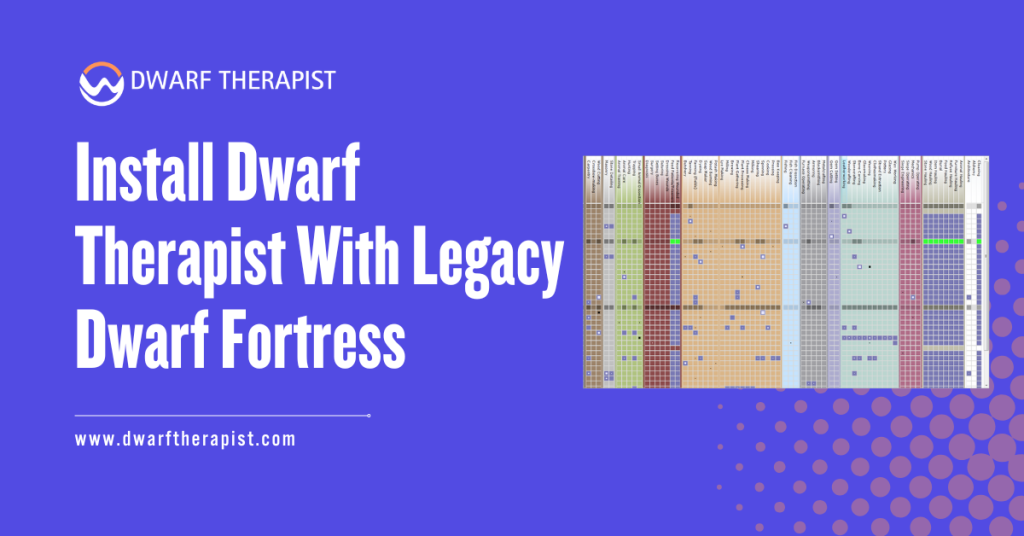
Introduction Dwarf Fortress has been in active development since 2006, and over those years it has gone through dozens of significant version changes. Each version shift has the potential to break compatibility with external tools, and Dwarf Therapist is no exception. Players who prefer older versions of Dwarf Fortress, whether for stability, modding compatibility, or personal preference, face a specific challenge: finding and installing the correct version of Dwarf Therapist that aligns with their legacy game build. This is not a niche problem. A large portion of the Dwarf Fortress community continues to play on pre-Steam releases, older Bay 12 builds, or specific versions tied to popular mod packs such as Lazy Newb Pack. Each of these scenarios requires a different approach to Dwarf Therapist installation than a standard current-version setup. This guide covers the complete process of identifying the right Dwarf Therapist version for a legacy Dwarf Fortress build, sourcing the correct files, handling memory layout compatibility, and resolving the most common issues encountered during this type of installation. Quick Facts about Installing Dwarf Therapist What Legacy Version Compatibility Actually Means How Memory Layouts Drive Version Matching Dwarf Therapist does not interact with Dwarf Fortress through an API or a plugin system. It reads the game’s process memory directly, using a set of offset values stored in memory layout files to locate specific data such as dwarf names, skill levels, and labor assignments. These offset values change every time Dwarf Fortress is recompiled, which happens with virtually every release. A memory layout file is a plain-text configuration file that maps named data fields to their memory addresses for a specific version of the Dwarf Fortress executable. When Dwarf Therapist launches and detects a running Dwarf Fortress process, it identifies the game version and loads the corresponding layout file from its layouts directory. If no matching layout exists, the tool will either display an unrecognized version error or produce completely incorrect data. This architecture means that version matching is not optional or approximate. A Dwarf Therapist build from 2018 paired with a Dwarf Fortress version from 2016 will not work correctly even if they are close in release date. The exact version numbers must correspond to a known compatible pair. Using an incorrect layout file risks displaying false labor assignments, which can lead to unintended changes being applied to your fortress dwarves. Identifying Your Legacy Dwarf Fortress Version Before sourcing any Dwarf Therapist files, confirm the exact version of your Dwarf Fortress installation. The version number is displayed on the main menu screen each time the game launches. It follows a format such as v0.47.05 for pre-Steam releases or a numerical build identifier for Steam versions. If the main menu is inaccessible or you are working with an offline installation, the version can often be found in the release notes file in the game directory, labeled release notes.txt or similar. For mod pack installations such as Lazy Newb Pack, the pack version number does not correspond directly to the Dwarf Fortress version; check the included documentation or the LNP launcher interface for the underlying game version. Write this version number down before proceeding. Every subsequent step in the installation process depends on it, and confirming it at the start eliminates the most common cause of installation failures. How to Find the Correct Dwarf Therapist Version for a Legacy Build Using the GitHub Releases Archive The Dwarf Therapist GitHub repository maintains a full archive of past releases accessible through the Releases section of the repository page. Each release entry includes a title, release notes, and attached binary files for supported platforms. Older releases are paginated further down the releases page and may require scrolling through multiple pages to locate. When reviewing release notes for older Dwarf Therapist versions, look for explicit mention of the Dwarf Fortress version number the release was built for. Not all release notes are equally detailed, and some older entries may describe compatibility in general terms rather than listing specific version numbers. In those cases, cross-referencing with community resources is necessary. The Bay 12 Forums thread dedicated to Dwarf Therapist has historically maintained compatibility tables that map Dwarf Therapist release versions to their supported Dwarf Fortress versions. This thread spans many years of updates and is searchable by version number. The r/dwarffortress subreddit also contains archived posts discussing version-specific compatibility for popular legacy builds. Once you have identified the correct Dwarf Therapist release, download the binary for your operating system from that specific release entry. Do not download the latest release and assume it will include backward compatibility. Dwarf Therapist releases do not maintain backward compatibility with older game versions by design. When No Official Release Exists for Your Version There are legacy Dwarf Fortress versions for which no official Dwarf Therapist release was ever published. This is particularly common for minor patch releases and for versions that were quickly superseded. In these cases, two options exist. The first option is to use a Dwarf Therapist version built for the closest preceding Dwarf Fortress release and attempt to locate or create a custom memory layout file for the exact game version you are running. This is a viable approach for players comfortable with editing configuration files and using community memory-scanning tools, such as those discussed in the Dwarf Fortress modding community. The second option is to check whether the Lazy Newb Pack or another established mod pack for your target game version already bundles a working Dwarf Therapist build. Mod pack maintainers frequently patch Dwarf Therapist compatibility as part of their release process, and their bundled versions often include custom memory layouts that are not available in the official repository. Common problems encountered when sourcing legacy versions and how to resolve them: Step-by-Step Installation for Legacy Version Setups Matching and Installing the Correct Files With the correct Dwarf Therapist release identified, the installation process on Windows involves extracting the downloaded archive to a permanent folder outside any system directories. A dedicated folder such as a games utilities directory works well. Avoid installing
Updating Dwarf Therapist Without Losing Settings
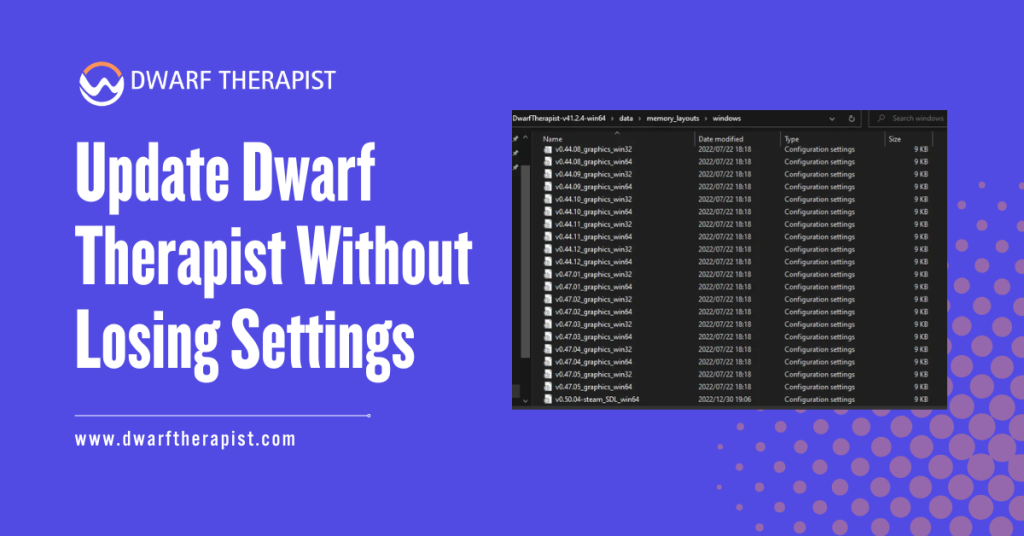
Introduction Dwarf Therapist is a portable, folder-based application with no system installer, which means updating it is not as straightforward as running an automatic updater or clicking a single button. Every new release arrives as a fresh archive that players must extract and configure manually. Without a deliberate approach to preserving your existing setup, an update can silently overwrite the custom roles, labor profiles, and display preferences you have spent time building across multiple fortress sessions. The good news is that Dwarf Therapist stores its user configuration in separate files entirely separate from the core application files. Understanding which files hold your settings, where they are located, and how to carry them forward into a new version is all you need to update cleanly without losing any customization. This guide covers that process in full, including what to back up, how to transfer settings correctly, and how to verify everything is working after the update. All guidance here is based on community-verified procedures and is intended for informational use by Dwarf Fortress players on Windows. Quick Facts about Updating Dwarf Therapist What Settings Are at Risk When You Update Dwarf Therapist Which Files Store Your Configuration? Dwarf Therapist separates its core application logic from user-generated data. The executable and its supporting system files handle the memory-reading and interface functionality. Your personal configuration, by contrast, lives in a small set of files that the application reads on startup and writes to when you make changes during a session. The primary settings at risk during an update Dwarf Therapist fall into three categories. Custom roles are the most valuable, as these represent named labor groupings you have defined to quickly assign multiple labors at once to a dwarf type such as a dedicated miner, hauler, or craftsdwarf. Labor display preferences control which columns appear in the grid and in what order, and losing these means rebuilding your visual layout from scratch. Notification thresholds and stress settings, where configured, are also stored in user-facing files rather than hardcoded into the application. The specific files that hold these settings are typically found within the application folder itself, often in a subfolder named something along the lines of “share” or “therapist” depending on the release version, or in some builds they appear directly in the root of the application folder as files with extensions such as .ini, .json, or .csv. Locating them before updating is the essential first step that many players skip and later regret. Why Updates Overwrite Settings Without Warning Dwarf Therapist does not include an update manager or a settings migration system. When you download and extract a new release, you receive a clean folder containing only the files the maintainers packaged for that version. If you copy that new folder on top of your existing one or simply start using the new executable without moving your settings files, the application will either use its built-in defaults or fail to find any of your previous configuration. This is not a flaw in the application design so much as a consequence of its portable structure. Portable applications trade the convenience of automatic updates for the simplicity of running without installation. The tradeoff means that update management, including settings preservation, falls entirely to the user. Understanding this context makes the backup and migration steps feel less like an obstacle and more like a straightforward part of the update workflow once you have done it once. How to Back Up Your Dwarf Therapist Settings Before Updating Locating and Identifying Your Settings Files Before downloading a new version, open your existing Dwarf Therapist folder and examine its contents. You are looking for any files that you did not receive as part of the original download, meaning files that were created or modified after your first launch. These are your settings files. Common files and folders to look for include anything named roles, custom roles, or labor templates, any file with a .ini extension which typically stores display preferences and window configurations, any file with a .json or .csv extension that contains structured data about your labor definitions, and any subfolder that appears to hold user data rather than program resources. On some versions a folder called “share” contains a subfolder structure where roles and configurations are stored as individual named files. If you are uncertain which files were part of the original download and which you created, check the file modification dates in Windows Explorer. Files modified after your original installation date are the ones you want to preserve. All original application files will share the same date as when you first extracted the archive. Steps to locate your settings files: Creating a Safe Backup Before Proceeding Once you have identified your settings files, copy them to a backup location before doing anything else. A dedicated backup folder named something like “DwarfTherapist Settings Backup” alongside your application folder works well and keeps things easy to find if you need to restore. Do not delete your existing Dwarf Therapist folder at any point during this process. The safest approach is to leave it completely intact throughout the update, extract the new version into a separate new folder, migrate your settings files into the new folder, test the new version, and only then archive or remove the old folder once you have confirmed everything works correctly. This approach means you always have a working fallback if something goes wrong during the migration. How to Update Dwarf Therapist and Restore Your Settings Extracting the New Version Correctly Download the new Dwarf Therapist release from the official GitHub repository. Confirm before downloading that the release notes specify compatibility with your current Dwarf Fortress version. Extracting an incompatible version, even with perfect settings migration, will result in connection failures and incorrect data. Extract the new release into a fresh folder that is clearly named with the version number, for example “DwarfTherapist v41.2.4” or whatever the release number is. Do not extract into your existing folder and do not overwrite any files at this stage. The new folder should
Dwarf Therapist Config File & Default Settings Explained
Introduction Dwarf Therapist is a powerful external management tool for Dwarf Fortress, but most players interact only with its visual interface and never explore the configuration layer underneath it. The config file and default settings control how the application behaves, what data it displays, and how it organizes your dwarf roster. Understanding these settings gives you meaningful control over the tool beyond basic point-and-click labor management. You can define custom roles, adjust display behavior, set default labor states for new dwarves, and resolve persistent issues that the interface alone cannot fix. This guide explains every major component of the Dwarf Therapist configuration system, what each setting does, where the relevant files are located, and how to modify them safely and effectively. Quick Facts about Dwarf Therapist Config File What the Dwarf Therapist Config File Contains File Location and Structure Overview The config file location varies depending on your platform and how Dwarf Therapist was installed. On Windows, the file is typically found in the same directory as the Dwarf Therapist executable, named DwarfTherapist.ini or preferences.ini depending on the version. On Linux, the file is commonly stored in the hidden .config directory within the user’s home folder, under a path such as ~/.config/DwarfTherapist/DwarfTherapist.conf. On macOS, it may be located in ~/Library/Preferences/ or within the application bundle depending on how the build was compiled. The file is structured in sections, each marked with a bracketed header such as [MainWindow] or [Labor]. Each section contains key-value pairs that define specific behaviors. A typical entry looks like this: Understanding this structure makes manual editing straightforward. Each key has a defined purpose, and values are constrained to expected types such as integers, booleans, or strings. Entering an invalid value type for a key will usually cause Dwarf Therapist to fall back to its built-in default for that setting. Core Settings Sections and What They Control The config file is organized into logical sections that correspond to different areas of the application. The most commonly relevant sections for players are MainWindow, Labors, Roles, Display, and General. The MainWindow section stores the application window’s saved position and size, whether the toolbar and sidebar panels are visible, and the last-used column sort order. These settings are updated automatically each time you close the application, so manual editing of this section is rarely necessary. The Labors section is where default labor states are defined. Each labor has a corresponding key that determines whether it is enabled or disabled by default when Dwarf Therapist first reads a dwarf that has no prior configuration. This section directly influences how new migrants appear in the labor grid when they arrive at your fortress. The Display section controls visual presentation including column visibility, color thresholds for skill level highlighting, and whether mood indicators are shown inline with dwarf names. Adjusting these settings can meaningfully improve readability for large fortresses with dense labor grids. The General section contains application-level settings such as the memory polling interval, whether Dwarf Therapist should auto-refresh when new dwarves are detected, and logging verbosity for troubleshooting purposes. How Default Settings Affect Your Labor Grid Factory Defaults and What They Mean in Practice When Dwarf Therapist is installed fresh with no prior configuration, the factory defaults determine how every element of the interface is presented. These defaults are embedded in the application binary and represent the developer’s judgment about a reasonable starting state for a new user. By default, most labors are neither universally enabled nor universally disabled in the grid display. The tool presents the current state of each dwarf’s labor as it appears in the game, rather than imposing its own starting values. This means the grid on first launch reflects whatever labor states your dwarves already have from in-game assignment or vanilla defaults. The refresh interval defaults to a moderate polling rate, typically a few seconds between memory reads. This balances responsiveness with system resource usage. For players managing very large fortresses, lowering the polling interval can make the grid feel more reactive. For players on lower-end hardware, increasing it reduces background CPU usage. Color-coding defaults assign visual distinctions to skill-level ranges, helping players quickly identify which dwarves are novices versus experts in any given labor column. These thresholds can be adjusted in the Display section if the default ranges do not match your preferred visibility style. Role Definitions and How They Interact With Default Settings Roles in Dwarf Therapist are named labor bundles that you can define once and apply to any dwarf with a single action. A role called Farmer might enable agriculture, plant gathering, and food hauling while disabling everything else. A role called Dedicated Smith might enable only metalsmithing and related hauling labors. Role definitions are stored in the config file’s Roles section. Each role entry specifies a name, a list of enabled labors, and optionally a list of explicitly disabled labors. When you apply a role to a dwarf, Dwarf Therapist writes those labor states directly to the game’s memory for that dwarf. Default roles shipped with Dwarf Therapist cover common fortress archetypes and provide a useful starting point. They are fully editable and can be replaced with custom definitions suited to your particular fortress management style. Common problems with default settings and how to resolve them: Editing the Config File Safely and Effectively Manual Editing Best Practices Manual configuration file editing gives you precise control over settings not exposed through the graphical interface. Before making any changes, copy the existing config file to a backup location named DwarfTherapist.ini.backup. Open the config file in a plain text editor. On Windows, Notepad works but a code-aware editor such as Notepad++ or VS Code will highlight structure more clearly and reduce the risk of accidental formatting errors. On Linux and macOS, any terminal-based or GUI text editor is suitable. Edit only the key-value pairs you intend to change. Avoid altering section headers, removing keys entirely, or changing the file encoding. Most config parsers used by Qt applications expect UTF-8 encoding without a byte order mark;
How to Install Dwarf Therapist With Mods Enabled
Introduction Installing Dwarf Therapist alongside a modded version of Dwarf Fortress introduces a specific set of challenges that a clean vanilla installation does not. Mods can alter labor definitions, add new professions, change dwarf attributes, and restructure the underlying data that Dwarf Therapist reads from game memory. When these changes conflict with what the tool expects to find, the result ranges from minor display issues to a complete failure to connect. Understanding how Dwarf Therapist interacts with mods before you begin the installation process saves significant troubleshooting time later. The relationship between the tool and the game is built on memory offset mapping, and mods that touch labor, skill, or unit data are most likely to disrupt that mapping. This guide covers the full installation process for a modded Dwarf Fortress environment, what to check before installing, how to configure the tool for mod compatibility, and how to handle the most common conflicts players encounter. All guidance is based on community-verified procedures and is intended for informational use. Quick Facts about How to Install Dwarf Therapist What Mod Types Affect Dwarf Therapist Compatibility Labor and Profession Mods Mods that introduce new labors or redefine existing profession categories are the most directly relevant to Dwarf Therapist functionality. The tool builds its labor grid based on an internal list of expected labor identifiers. When a mod adds labors that fall outside that list, those labors simply do not appear in the Dwarf Therapist interface. This does not necessarily break the tool entirely. Dwarves will still appear in the roster, and existing vanilla labors will still display and function normally. The gap is that any mod-added labor becomes invisible to the Dwarf Therapist, meaning you cannot assign or track them through the tool. Mods that rename or reindex existing vanilla labors carry more risk. If a mod reassigns the numeric identifier of a labor that Dwarf Therapist expects at a specific memory position, the tool may display incorrect labor states, showing labors as enabled when they are disabled or vice versa. Unit Attribute and Skill Mods Mods that add entirely new skill categories or extend the skill list beyond the vanilla range can cause display anomalies in the skill columns of the Dwarf Therapist grid. The tool allocates columns based on the expected number of skills, and additions outside that range may display as blank columns, overflow into incorrect positions, or cause the grid layout to shift. Mods focused purely on graphics, interface improvements, creature additions without new labors, or world generation parameters generally have no impact on Dwarf Therapist at all. The tool only reads unit-level data, so anything that does not touch how dwarves store their attributes, labors, and skills in memory is effectively invisible to it. Knowing which category your active mods fall into before installing Dwarf Therapist helps you set realistic expectations for what will and will not work without additional configuration steps. How to Download and Install Dwarf Therapist for a Modded Game Preparing Your Modded Installation Before Download Before downloading Dwarf Therapist, take stock of your active mods and identify which ones, if any, introduce new labors, modify existing profession definitions, or alter skill structures. Mod documentation, typically included in the mod’s readme file or its forum or workshop page, will usually state whether the mod affects labors or skills. For mod packs with known Dwarf Therapist compatibility work done by the community, search for a Dwarf Therapist patch or compatibility file associated with that specific mod pack. These are separate downloads that provide updated labor definition files pre-configured for the mod’s additions. Using an existing compatibility patch is always faster than building labor definitions manually from scratch. Steps to prepare before installing: Downloading and Extracting the Correct Release Download Dwarf Therapist from the official GitHub repository releases page. Select the release that matches your Dwarf Fortress version exactly, applying the same version-matching requirement that applies to any Dwarf Therapist installation regardless of mod status. Extract the downloaded archive into a dedicated folder outside your Dwarf Fortress installation directory. Keeping the tool folder separate from the game folder prevents any accidental interaction between the two directory structures and makes future updates easier to manage. If you are using a mod pack that has a community-maintained Dwarf Therapist compatibility patch, download that patch as well and keep it ready. You will apply it after the base installation is confirmed working, not before. Configuring Dwarf Therapist to Work With Your Mods Applying Compatibility Patches and Labor Definition Updates If a community compatibility patch exists for your mod pack, apply it now before your first launch. Most patches consist of replacement or additional labor definition files that slot into the Dwarf Therapist folder structure. The patch documentation will specify exactly which files to place where. Read the patch instructions carefully before copying files. Some patches replace existing default files entirely, while others add supplementary files alongside defaults. Replacing a file you should have kept, or adding a file to the wrong subfolder, are the two most common application mistakes and both produce incorrect labor displays. If no pre-built compatibility patch exists for your mods, you will need to add mod-introduced labors to Dwarf Therapist’s labor definition files manually. These files are plain text and can be opened in any text editor. Compare the labor identifiers your mod adds, found in its raw files, against the existing entries in Dwarf Therapist’s labor list, and add matching entries that follow the same formatting pattern as the existing entries. Testing the Installation Before Your Main Playthrough Before committing to a long modded playthrough with Dwarf Therapist as part of your workflow, run a short test session in a temporary fortress. This confirms that the tool connects correctly, displays your mod-added labors if you have configured them, and does not show any obviously incorrect data in the grid. Common problems and practical solutions in a modded installation: After confirming basic functionality in the test fortress, load your actual modded save or start your intended playthrough. Monitor the labor grid